
TABLE OF CONTENTS
- Introduction to Bulk Actions via File Upload
- Walkthrough
- How to identify the correct Marketplace Connection
- FAQs:
Introduction to Bulk Actions via File Upload
Standardize and streamline your order management by utilizing the Order Uploads feature in Locad's Merchant Portal. This module allows you to perform bulk actions via file upload, such as replacing items, updating fulfilment locations, and unfulfilling specific orders or items. Using predefined templates saves you time and minimizes manual data entry errors when handling large volumes of orders.
Note: Access to Order Uploads module is restricted to Brand Admins and Locad Staff only.
Walkthrough
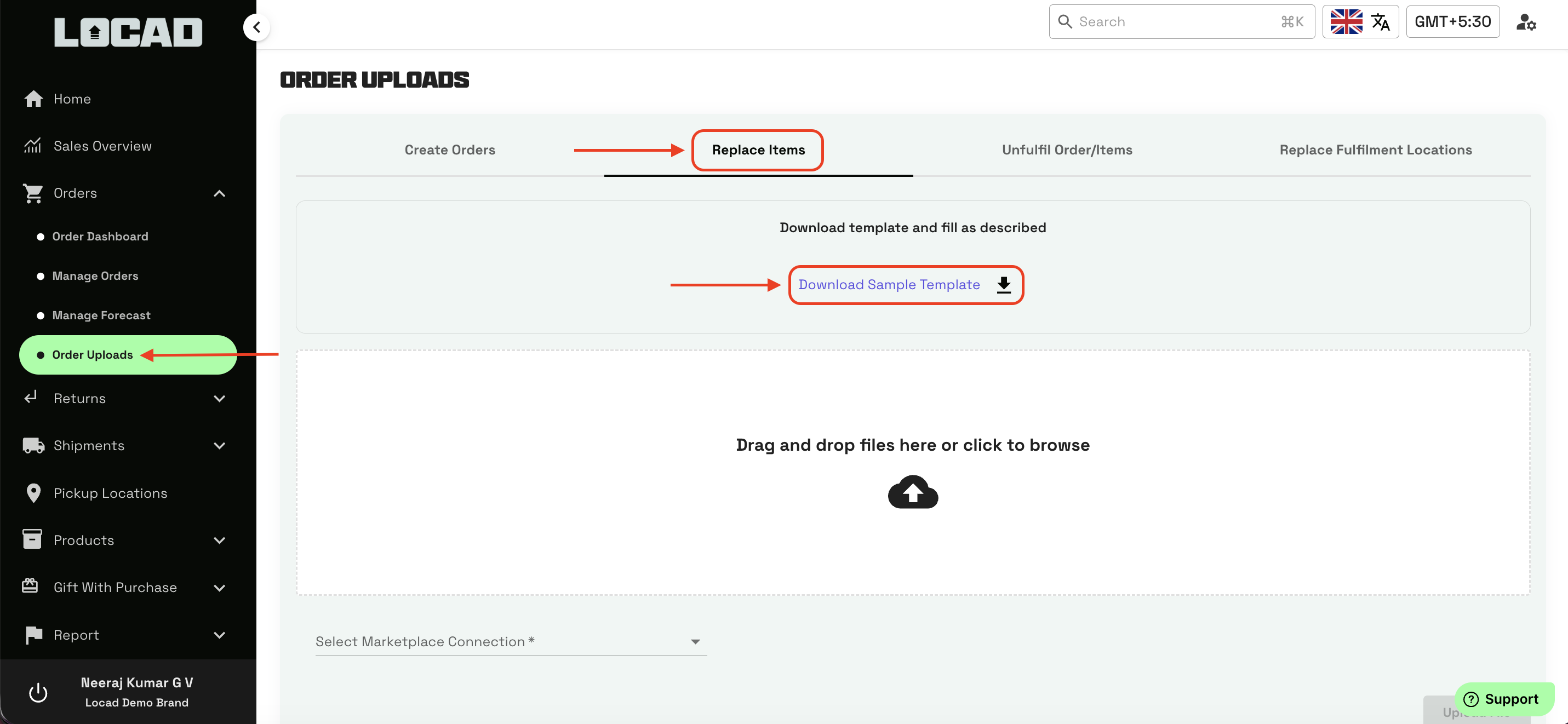
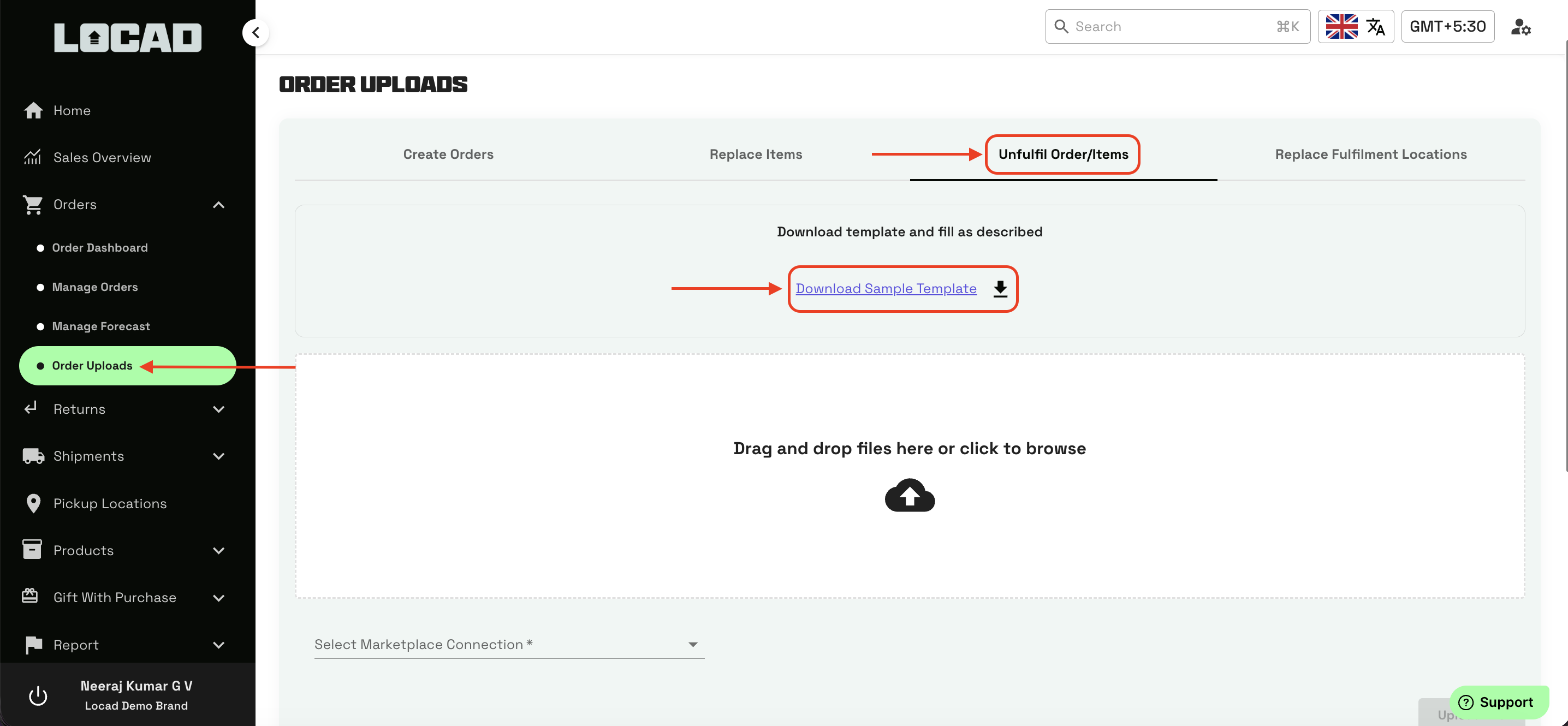
To access the bulk upload features, log into Locad's Merchant Portal, click on Orders in the left-hand navigation menu, and select Order Uploads.
1. Replace Items
Go to the Replace Items tab.
Click Download Sample Template to get the predefined formatting file.
Open the downloaded file and fill in the following details:
OrderNumber: The specific order number.
OldSKU: The SKU you want to remove (e.g., 3000445).
NewSKU: The SKU you want to add in its place (e.g., 3000452).
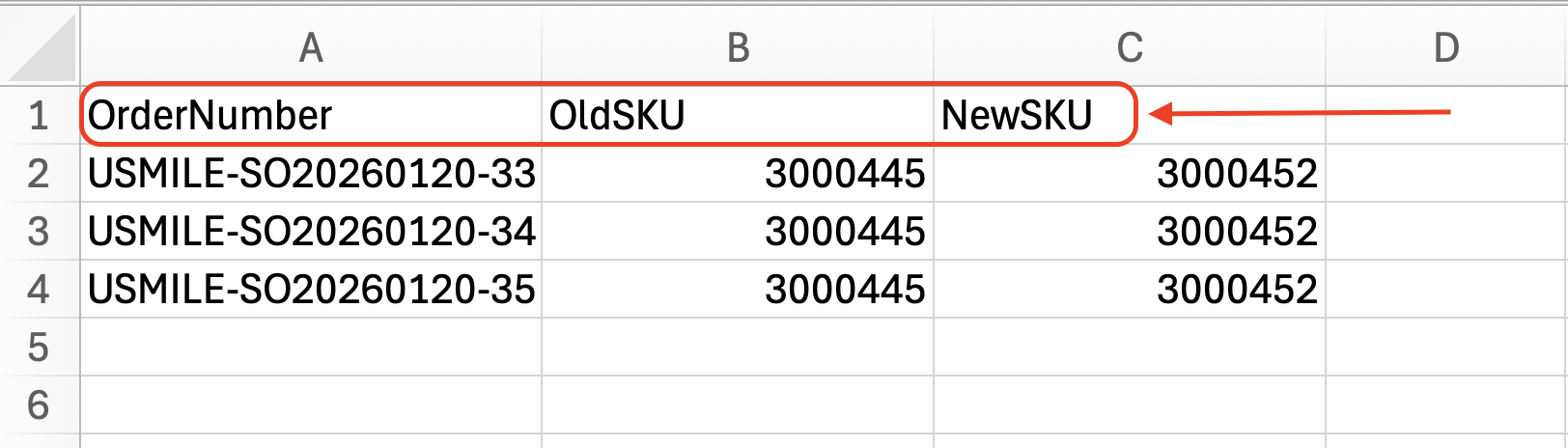
Note: If you need to replace multiple items within the same order, add the order number across multiple lines, pairing each with the respective Old and New SKUs.
- Save the file once all details are filled.
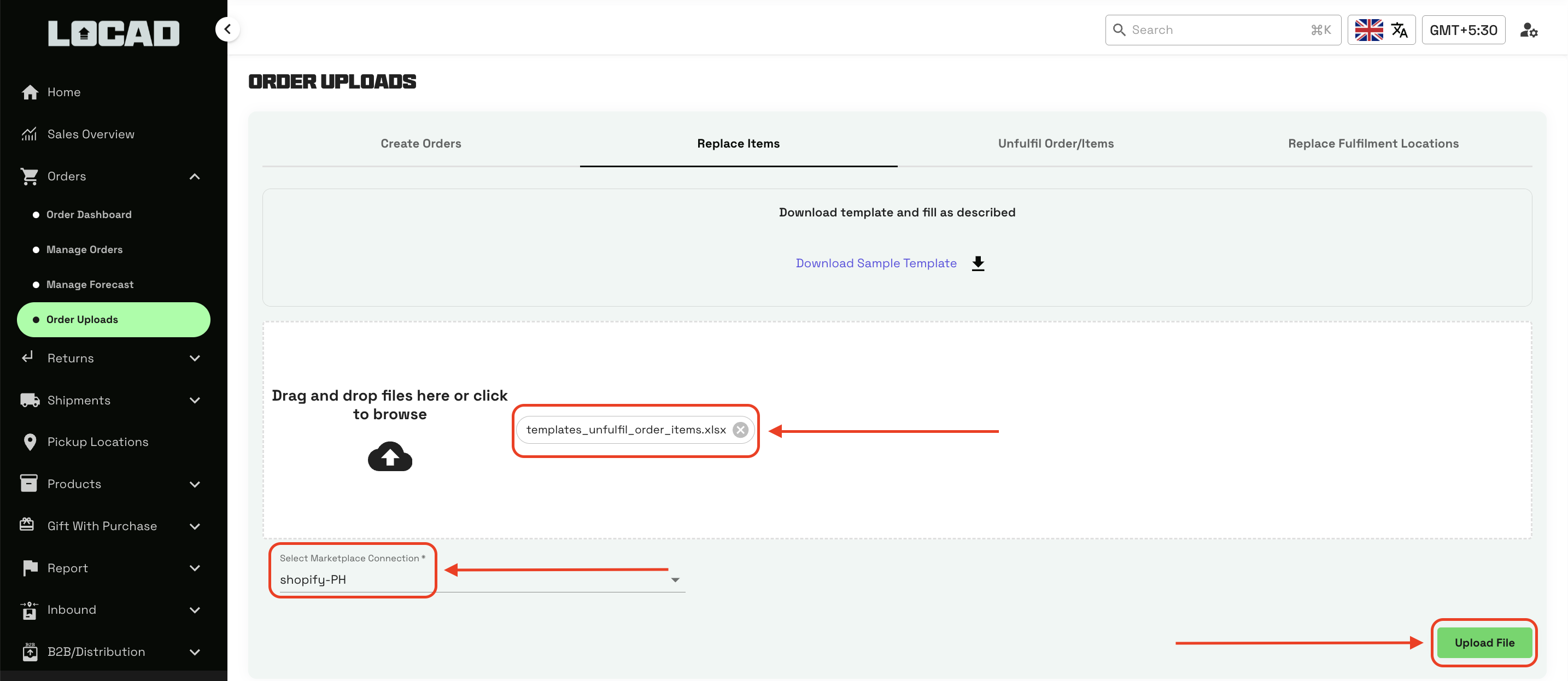
Back on the Locad Merchant Portal page, select the correct Marketplace Connection for these orders from the dropdown menu.
Drag and drop your saved file (or click to browse), then click Upload File.
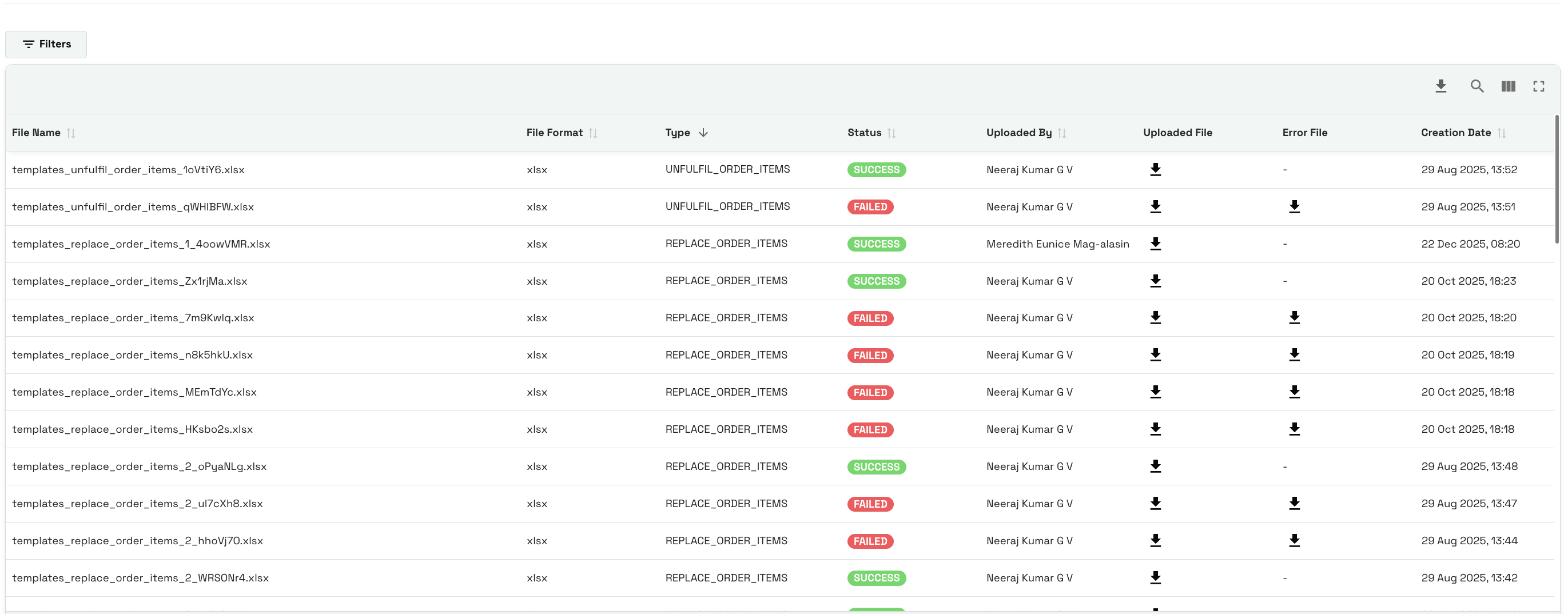
Scroll down to check the upload status. If the upload fails, you can download the error file generated to understand the exact reason for the failure.
2. Replace Fulfilment Locations
To change the fulfillment location of orders in bulk:
Go to the Replace Fulfilment Locations tab.
Click Download Sample Template.
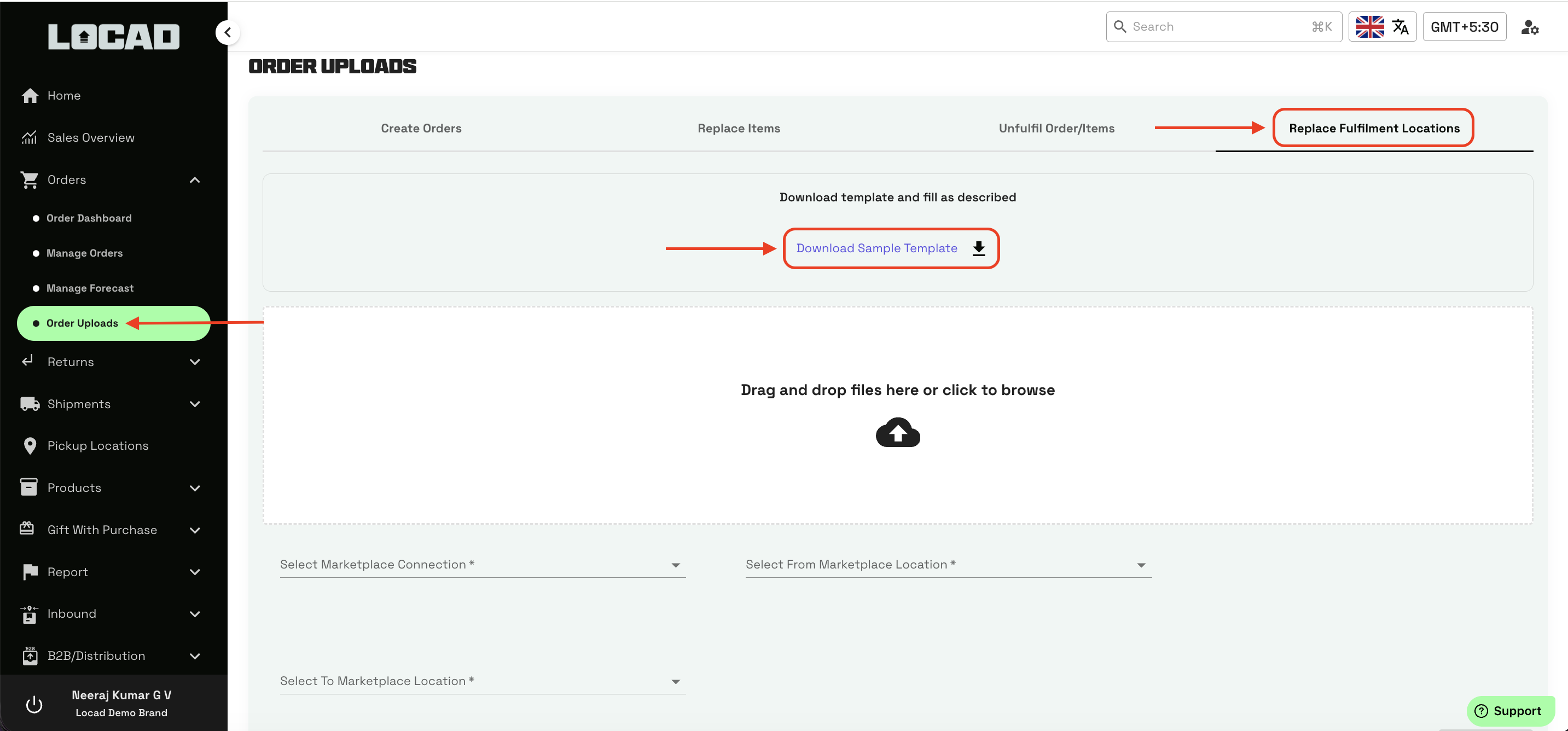
Open the file and enter the OrderNumber and the corresponding OrderItemSKU.
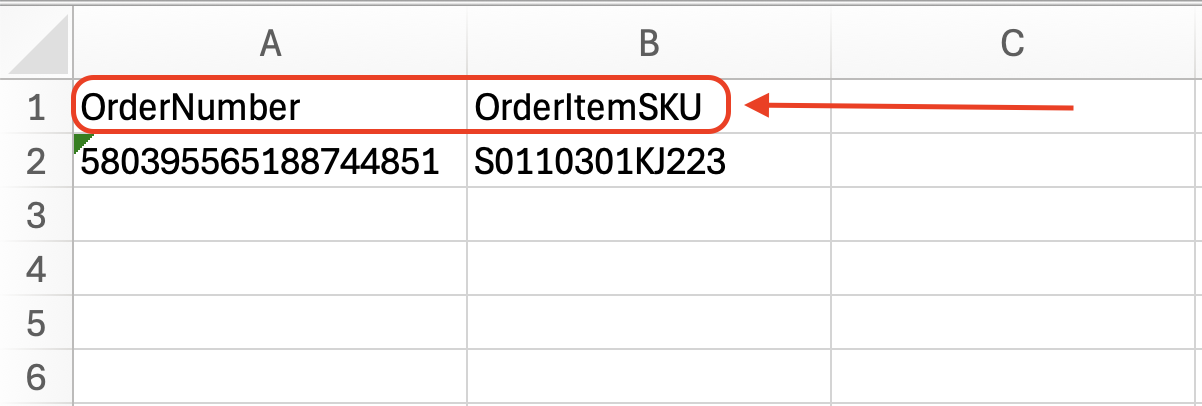
Note: If all items in an order need to be fulfilled from another location, leave the OrderItemSKU column blank and the entire order will be fulfilled from the new location.
- Save your file.
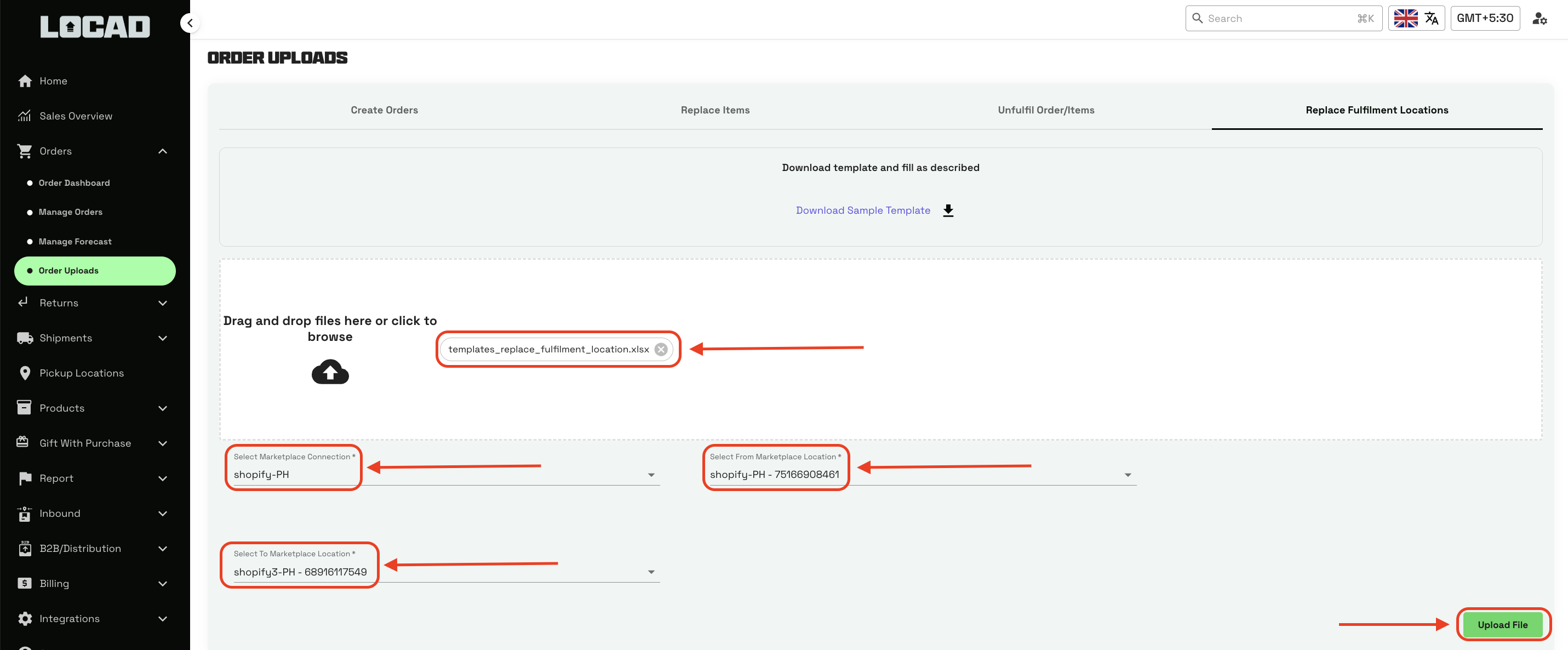
On the Merchant Portal, configure the routing by selecting:
Marketplace Connection of the orders
Select From Marketplace Location (The current assigned location)
Select To Marketplace Location (The new location you want to update to)
Upload the file and click Upload File.
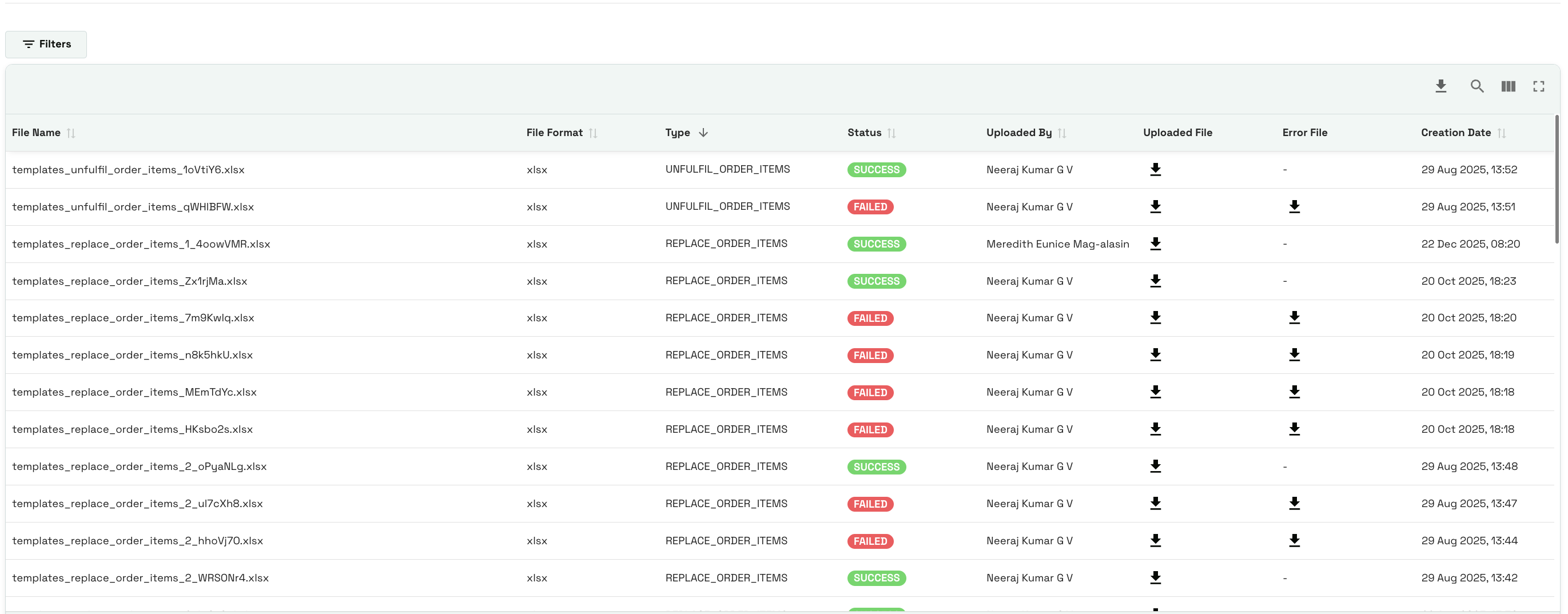
Scroll down to check the upload status. If the upload fails, you can download the error file generated to understand the exact reason for the failure.
3. Unfulfil Order/Items
To cancel the fulfillment process for specific items or entire orders:
Go to the Unfulfil Order/Items tab.
Click Download Sample Template.
Open the file and input the OrderNumber and the CatalogueSKU.
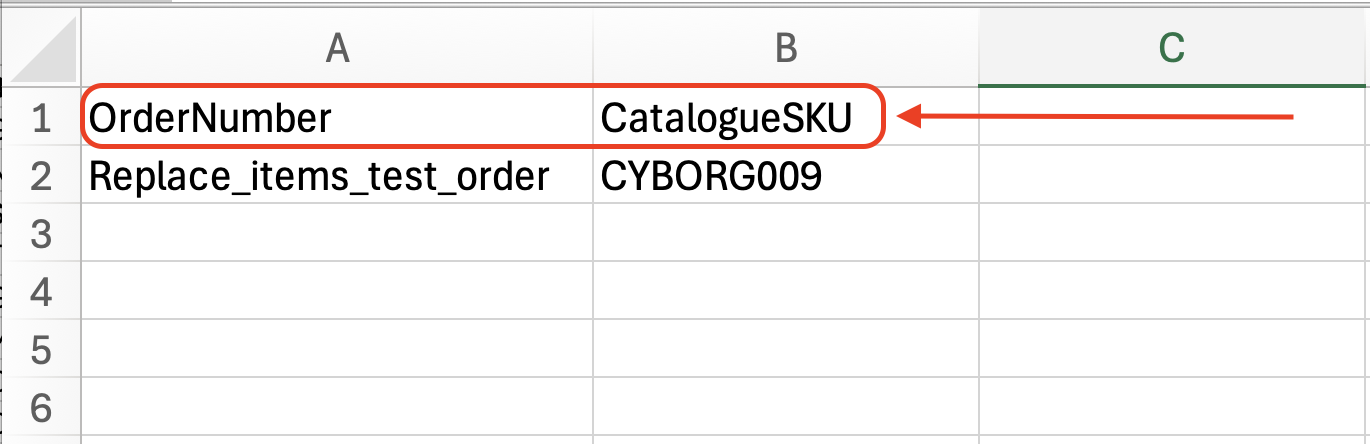
Note: If you want to unfulfil all items within an order, leave the Catalogue SKU column blank, the entire order will be unfulfilled.
- Save the file.
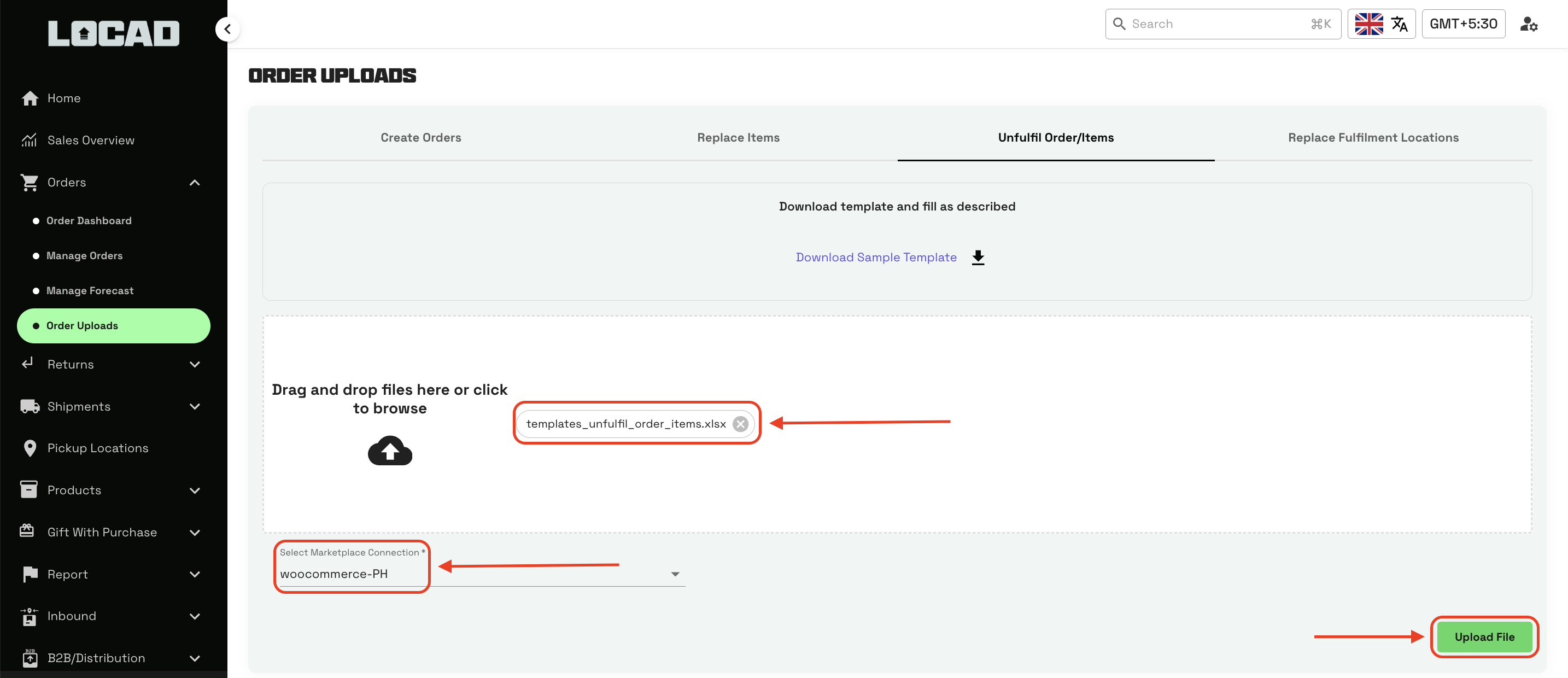
On the Merchant Portal, select the corresponding Marketplace Connection from the dropdown list.
- Drag and drop your saved file (or click to browse), then click Upload File.
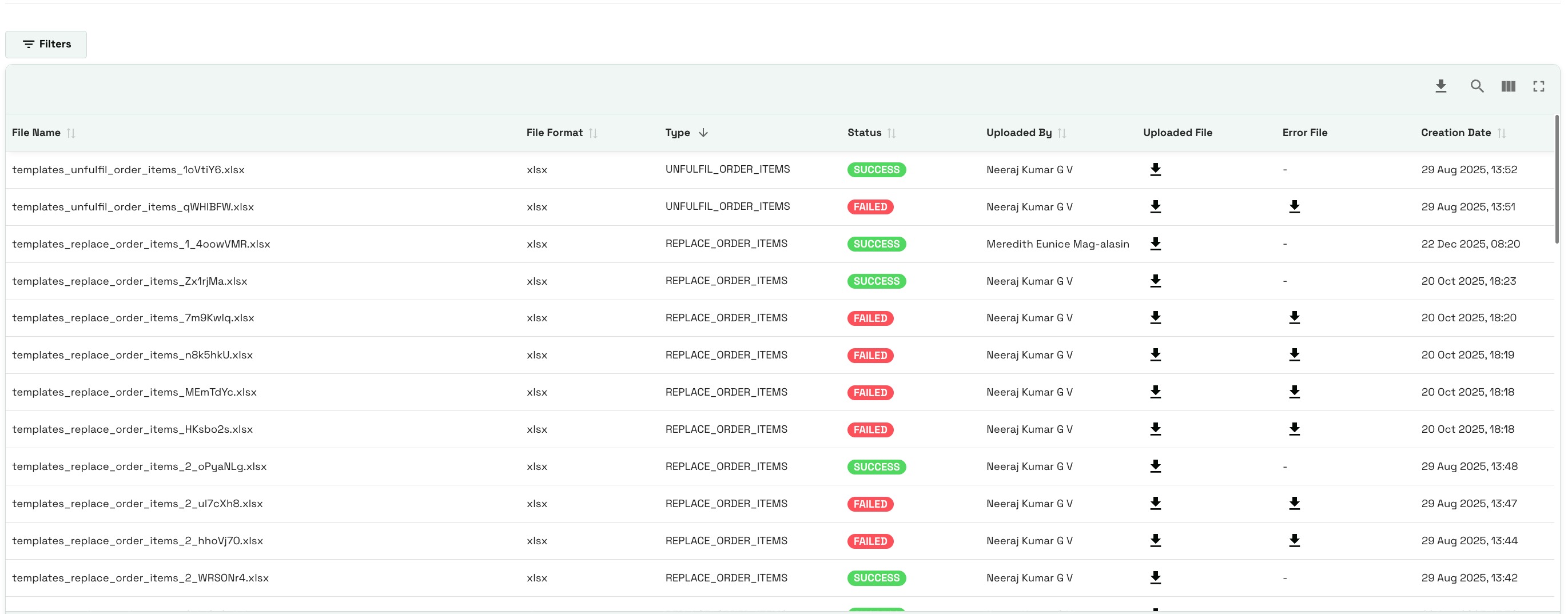
Scroll down to check the upload status. If the upload fails, you can download the error file generated to understand the exact reason for the failure.
How to identify the correct Marketplace Connection
If you are unsure which connection name to select, go to Marketplace Integrations > Select the Marketplace > Details. Look for the name listed under the Marketplace field.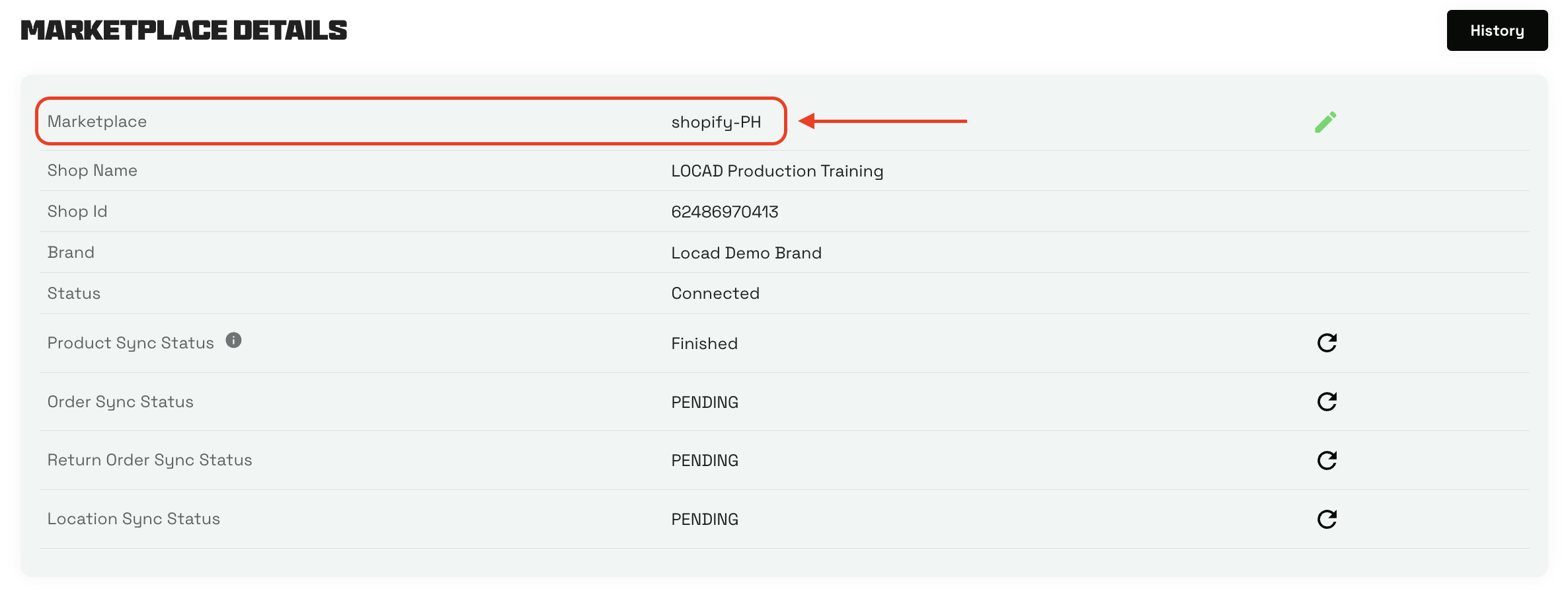
FAQs:
- Why do I need to select a "Marketplace Connection" before uploading?
Ans - Selecting the correct Marketplace Connection ensures that the system accurately identifies and applies the bulk updates to the specific sales channel or store where the orders originated. - How do I handle multiple items for a single order in the upload templates?
Ans - Add the order number in one column and duplicate it across multiple rows. For each row with that order number, input the different SKUs (Old/New SKU, OrderItemSKU, or CatalogueSKU depending on the action) that you want to modify. - What should I do if my bulk file upload fails?
Ans - After uploading, scroll down to the status section at the bottom of the page. If the status indicates a failure, download the provided error file. This file will detail the specific reasons for the error so you can correct your spreadsheet and re-upload. - How do I identify the correct Marketplace Connection?
Ans - If you are unsure which connection name to select, go to Marketplace Integrations > Select the Marketplace > Details. Look for the name listed under the Marketplace field.