
You can make use of this user guide to get a complete understanding of how to manually create, book, and cancel return shipments using the EMX carrier within the Book Shipments module.
TABLE OF CONTENTS
Introduction to Book Shipments (Returns)
The Book Shipments module allows you to manually create return orders when a customer needs to send items back to your warehouse. This is essential for managing customer service and inventory accuracy. This guide specifically covers the end-to-end process for creating a ReturnStandard shipment, booking it with the carrier EMX, and cancelling the booking if necessary.
Walkthrough
Part 1: Creating a Return Shipment
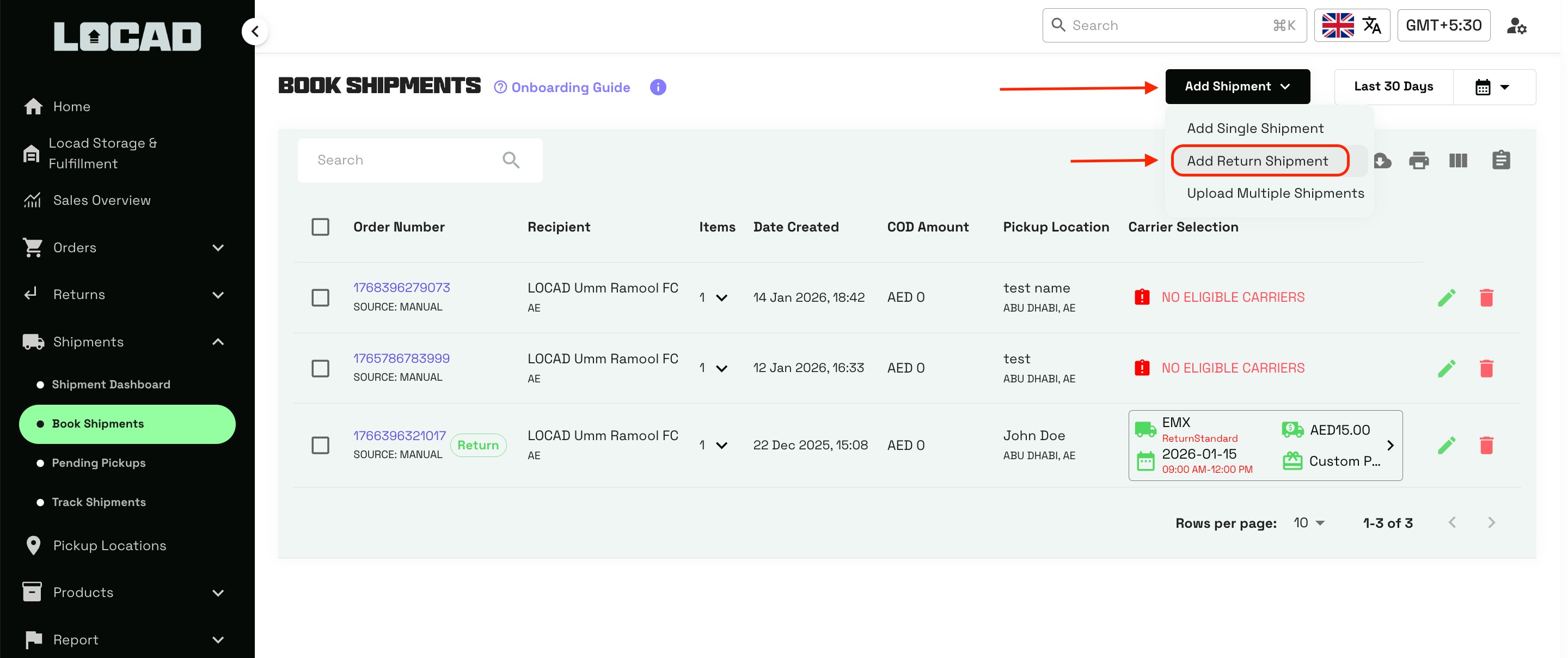
Navigate to Book Shipments: Log in to the Locad OMS and click on Book Shipments in the left-hand sidebar.
Initiate Return: Click the Add Shipment dropdown button in the top right corner and select Add Return Shipment.
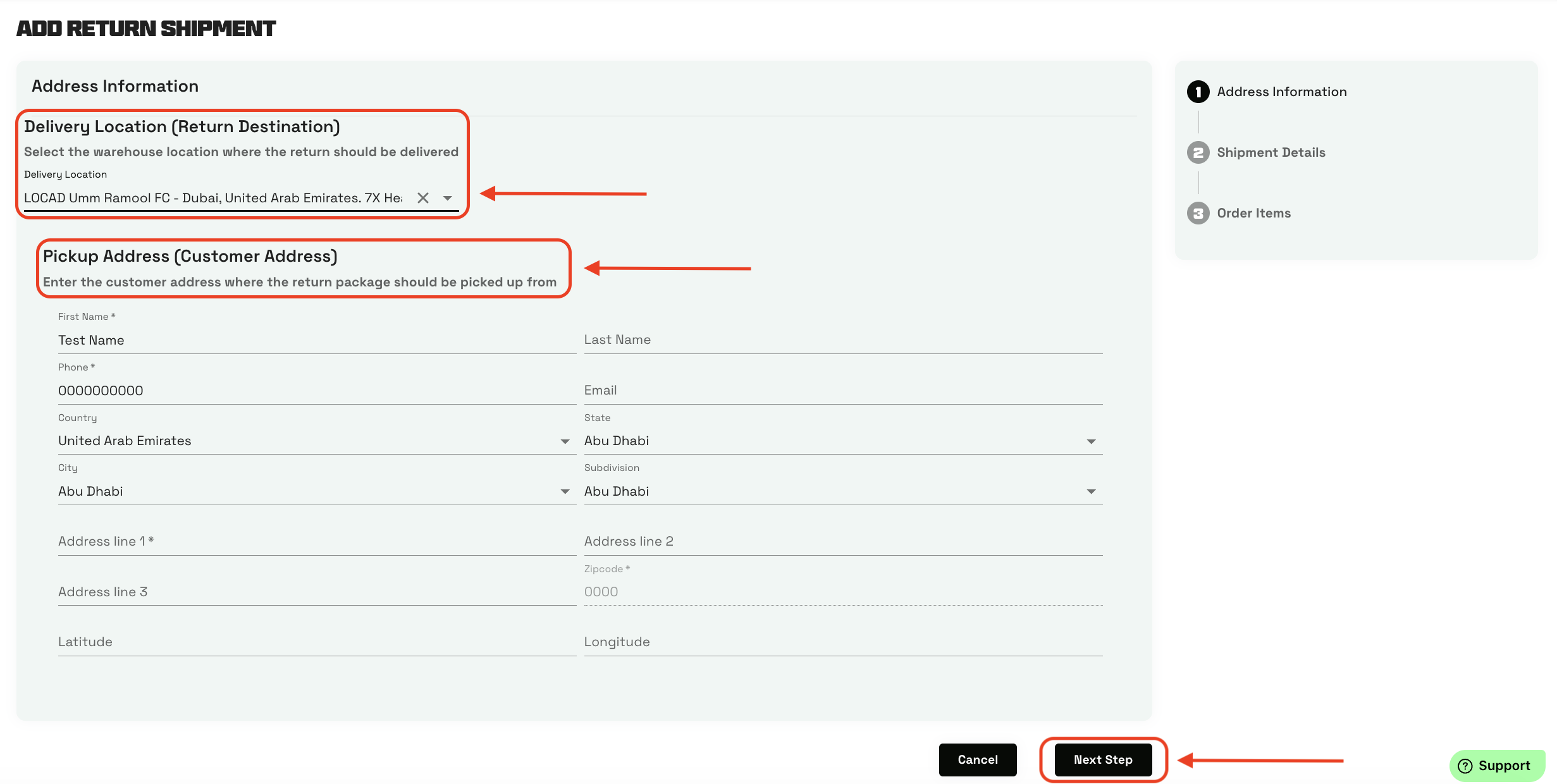
Step 1 - Address Information:
Delivery Location: Select the warehouse where the return should be delivered (e.g., LOCAD Umm Ramool FC).
Pickup Address: Enter the customer’s details, including First Name, Phone Number, Country, City/Subdivision, and full Address.
Click Next Step.
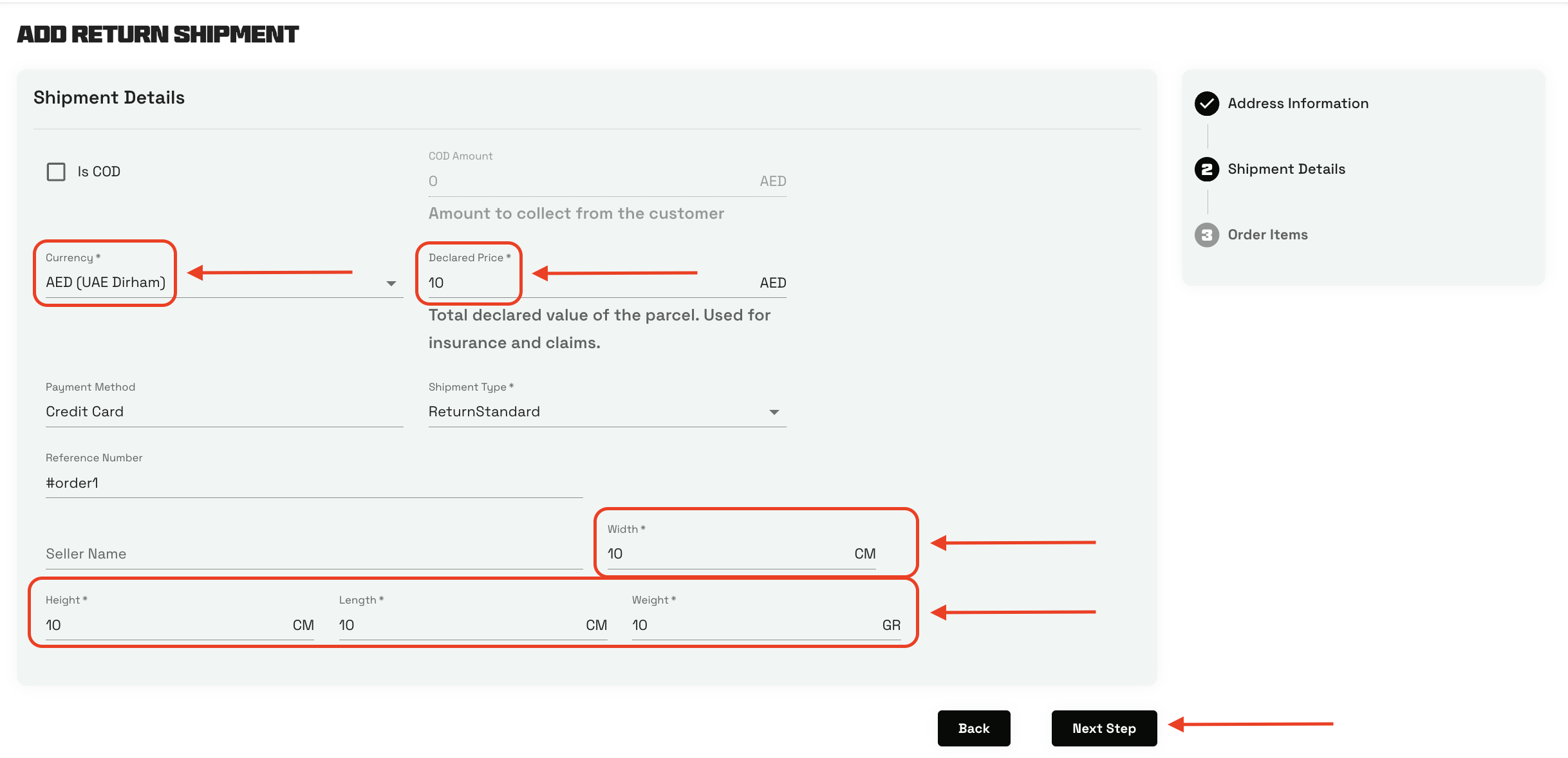
Step 2 - Shipment Details:
Fill in the Currency (e.g., AED) and Declared Price.
Ensure the Shipment Type is set to ReturnStandard.
Enter the parcel dimensions (Width, Length, Height) and Weight.
Click Next Step.
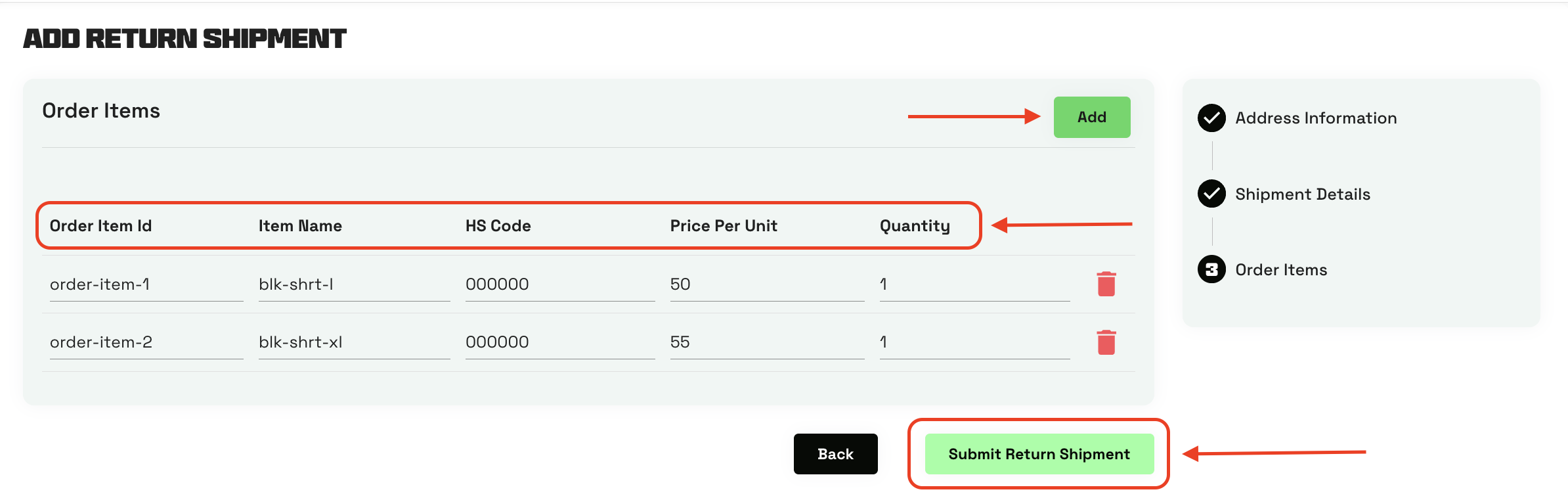
Step 3 - Order Items:
Enter the Order Item Id, Item Name, HS Code, Price Per Unit, and Quantity.
Click the Add button to add more order items.
Click Submit Return Shipment.
Success! The return order is now created and will appear in the main Book Shipments list.
Part 2: Booking the Shipment
Select the Order: In the Book Shipments list, locate the return order you just created (look for the green "Return" tag). Check the box next to the order number.
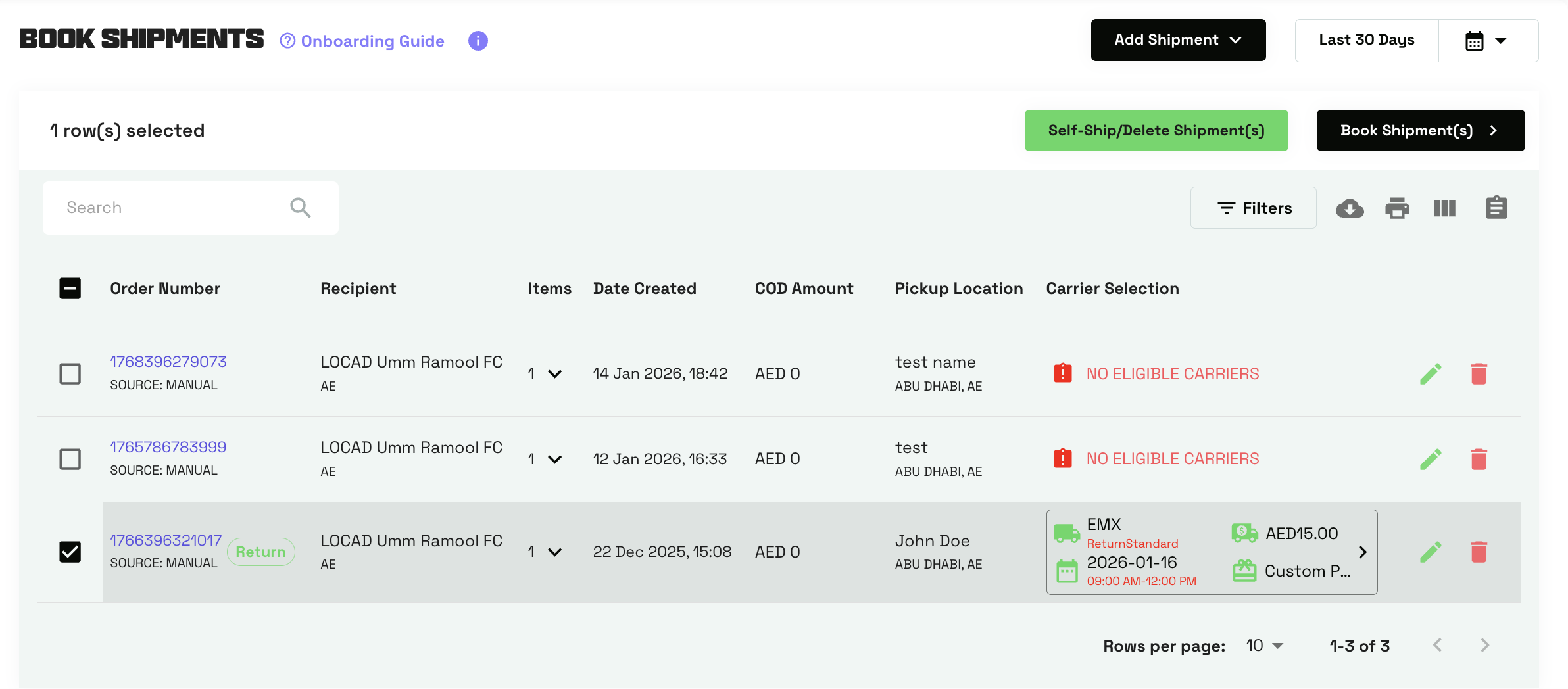
Click Book Shipments: Click the Book Shipments button in the top right.
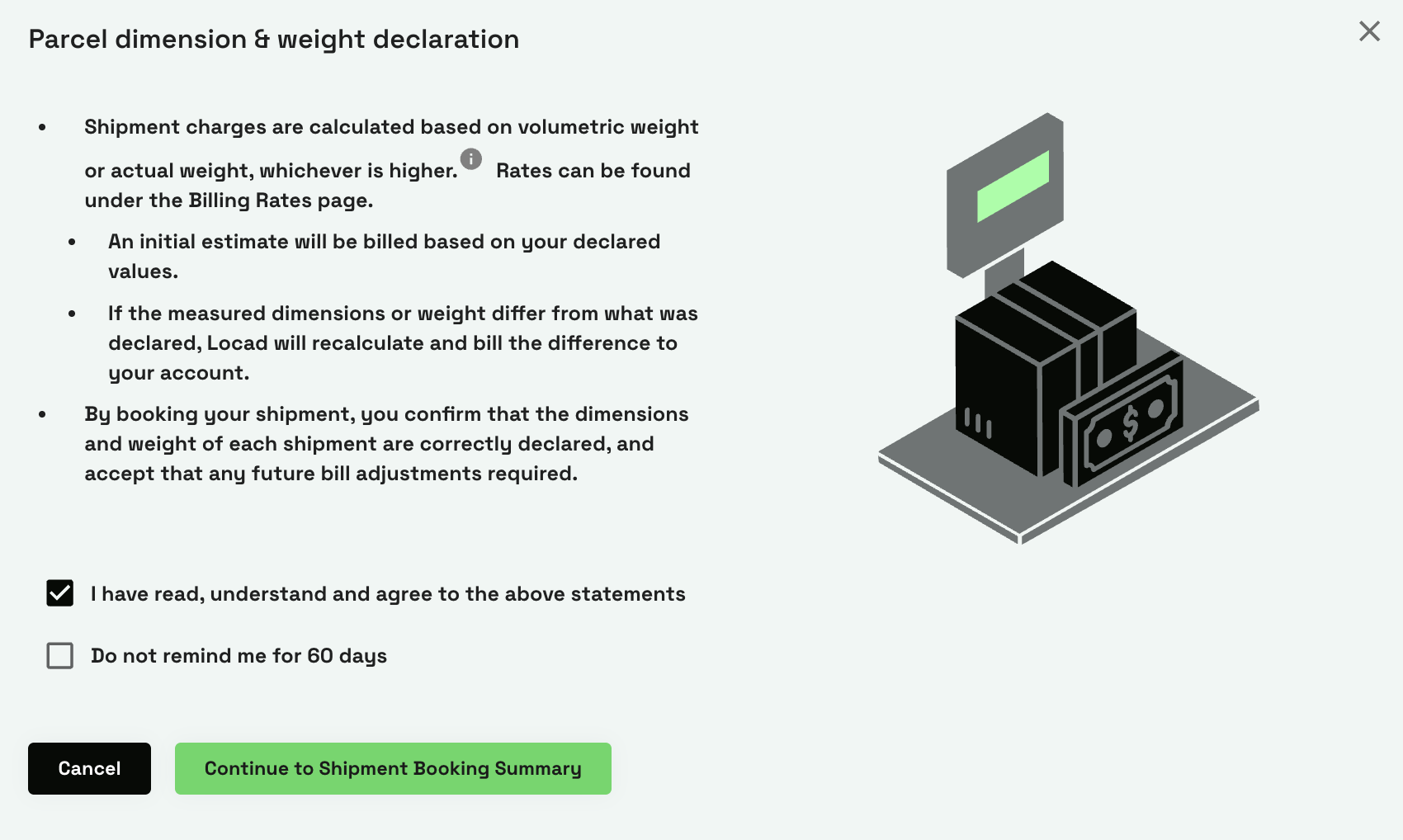
Declaration: A "Parcel dimension & weight declaration" popup will appear. Read the terms, check the acknowledgement box, and click Continue to Shipment Booking Summary.
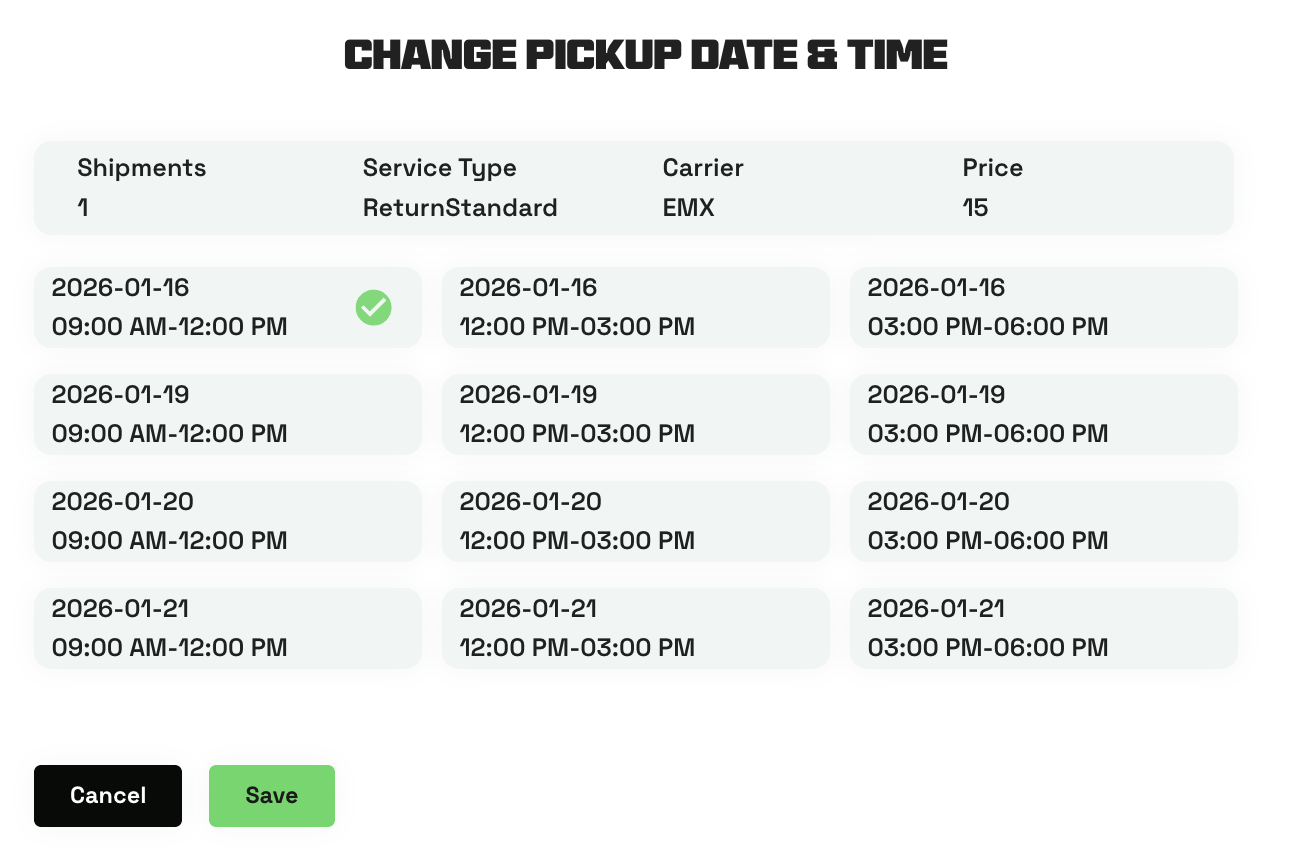
Choose the Pickup Date/time: Click on the Orange pencil icon next to the default date/time to view a list of available dates and times. Select the slot most suitable for you and click Save.
Note: Pickup Date & Time cannot be selected for the current day and can only be selected for a future Date & Time.
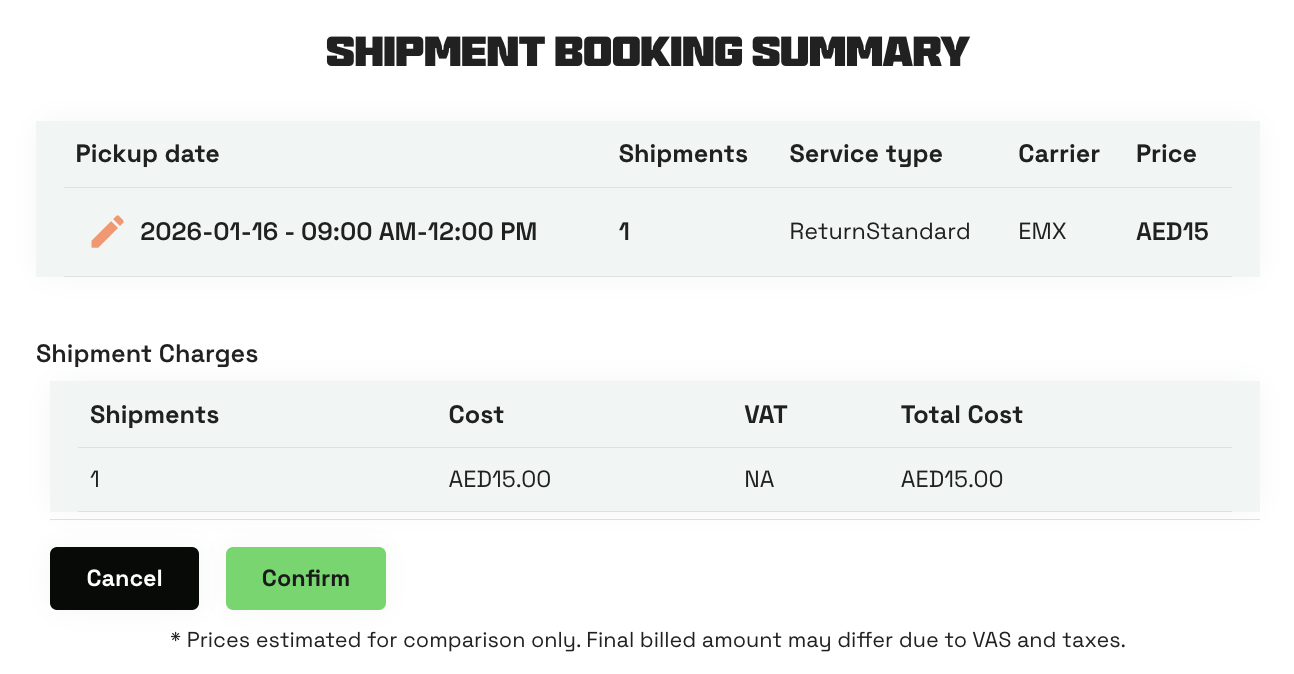
Confirm Booking: Review the details in the summary (ensure the Carrier is EMX and Service Type is ReturnStandard). Click Confirm.
Once the loading completes, you will see a success message: "Your shipment(s) have been booked!"
Part 3: Cancelling a Booking
If you need to cancel a booking (e.g., to correct details):
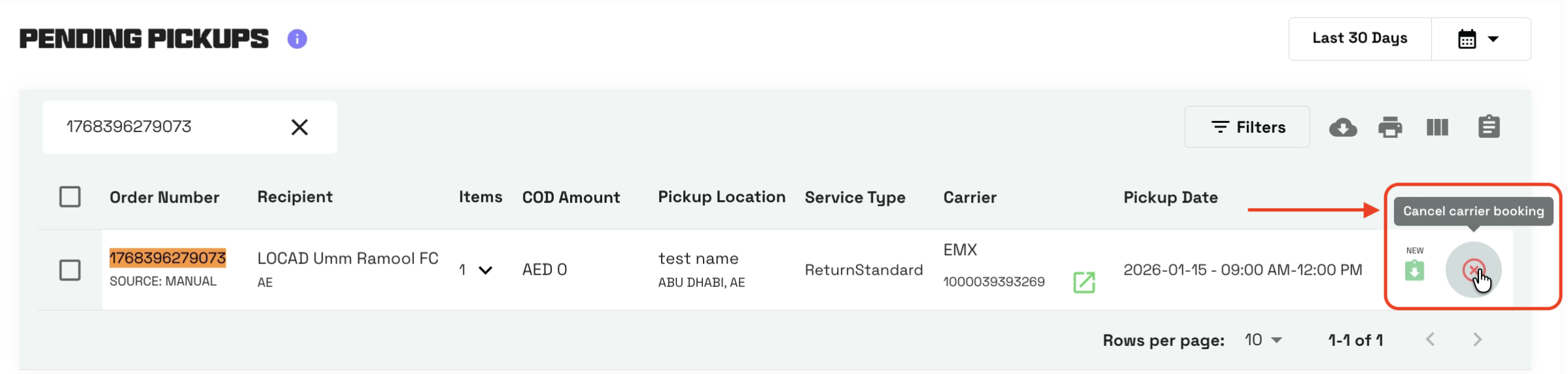
Go to Pending Pickups: Navigate to the Pending Pickups section (located under the Shipments menu on the left).
Select the Shipment: Find the booked EMX return shipment and check the box next to it.
Cancel: Click the Cancel Shipments button.
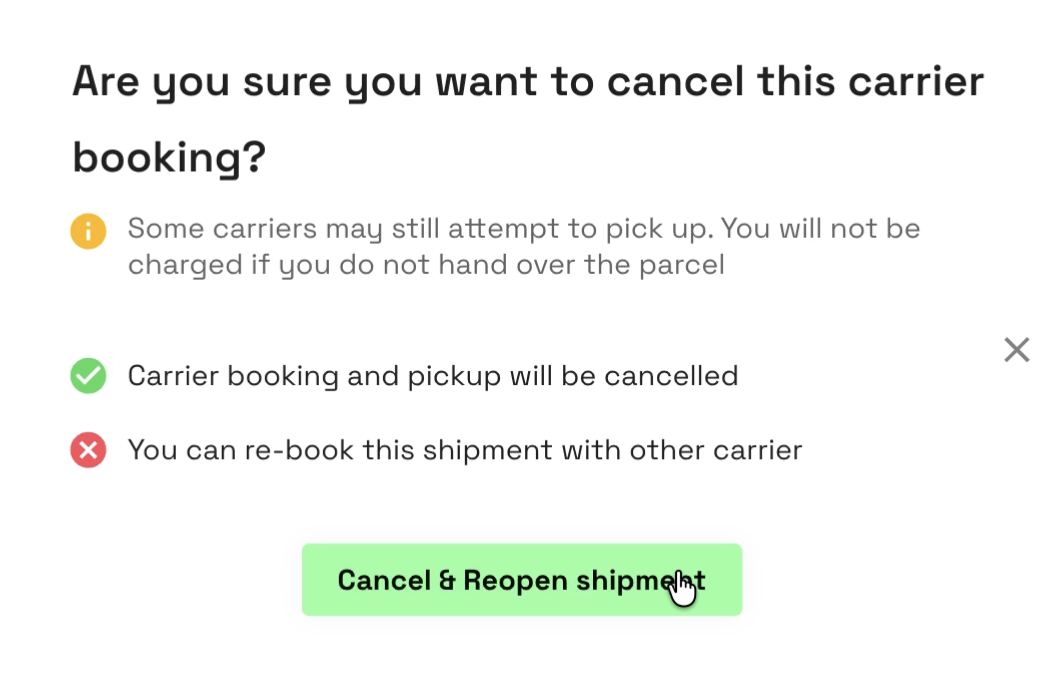
Confirm Cancellation: A popup will ask for confirmation. Click Cancel & Reopen shipment.
Note: This action cancels the carrier booking and moves the order back to the "Book Shipments" list, where it can be edited or re-booked.
FAQs:
- Can I book multiple return shipments at once?
Ans - Yes, simply select the checkboxes for multiple orders in the Book Shipments list before clicking the "Book Shipments" button. - What happens if I select "Cancel & Reopen shipment"?
Ans - The carrier booking is cancelled immediately. The order is not deleted; instead, it is moved back to the "Book Shipments" tab so you can make changes and book it again later. - Is the HS Code mandatory for return items?
Ans - Yes, entering a valid HS Code is often required for customs and carrier processing, especially for cross-border returns.