
You can make use of this user guide to get a complete understanding of how to manually upload waybills and tracking information for specific orders within the Locad OMS.
TABLE OF CONTENTS
Introduction to Manual Waybill Upload
The Manual Waybill Upload feature allows users to manually provide waybill files, carrier names, and tracking numbers for orders where Locad does not handle the last-mile delivery.
This is primarily used for:
- Manual Orders: Where the "Shipment Required" column in the upload template is set to FALSE.
- Custom (ERP/API) Orders: That are pushed without a waybill and are stuck at PICKED status.
- Marketplace Orders: (Shopee, Lazada, TikTok) that are stuck at PICKED status due to missing waybills.
Important Update on Manual Order Upload Template:
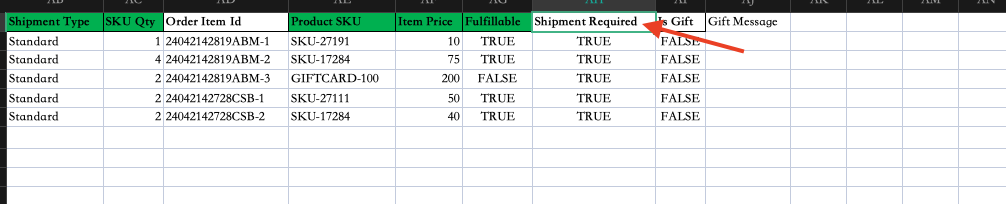
A new column titled "Shipment Required" has been added to the manual order upload template (Column AH).
Indicates whether the shipment should be handled by Locad for the order.
Accepted Values:
- Blank/TRUE (default): Shipment is required and Locad handles the last mile carrier booking.
FALSE: Indicates Locad will not handle the last mile. These orders will immediately go to ON HOLD status until you manually upload the waybill and input carrier name & Tracking number using the steps below.
Walkthrough
Follow these steps to upload waybills and release your orders for processing.
Navigate to Manage Orders: Log in to your Locad dashboard and go to Orders > Manage Orders.
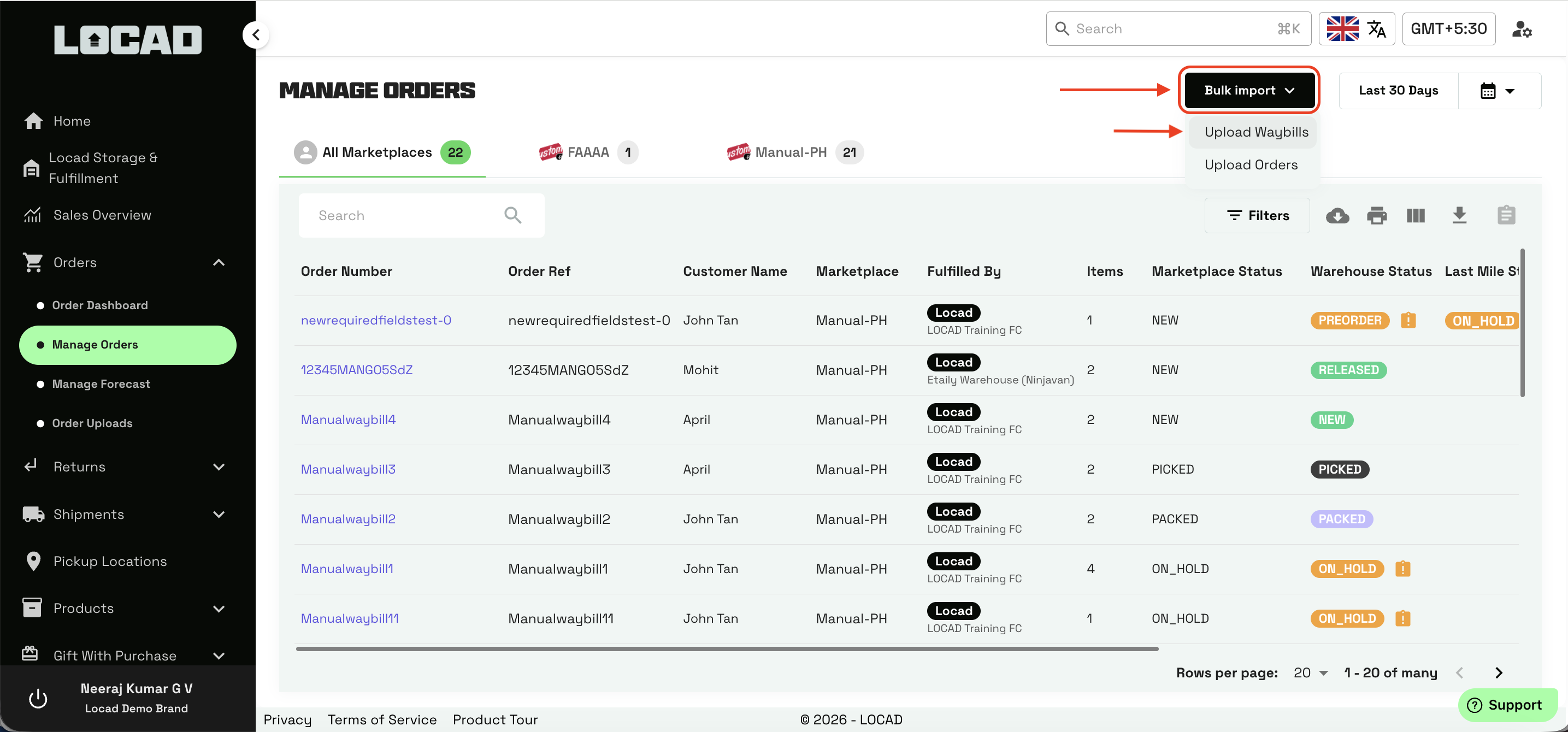
Access the Upload Waybills Screen: Click on the Bulk Import dropdown menu located at the top right of the page and select Upload Waybills.
Locate the Order: You will see a list of eligible orders (typically with status
ON_HOLDorPICKED). Search or Locate the specific order/s you need to update.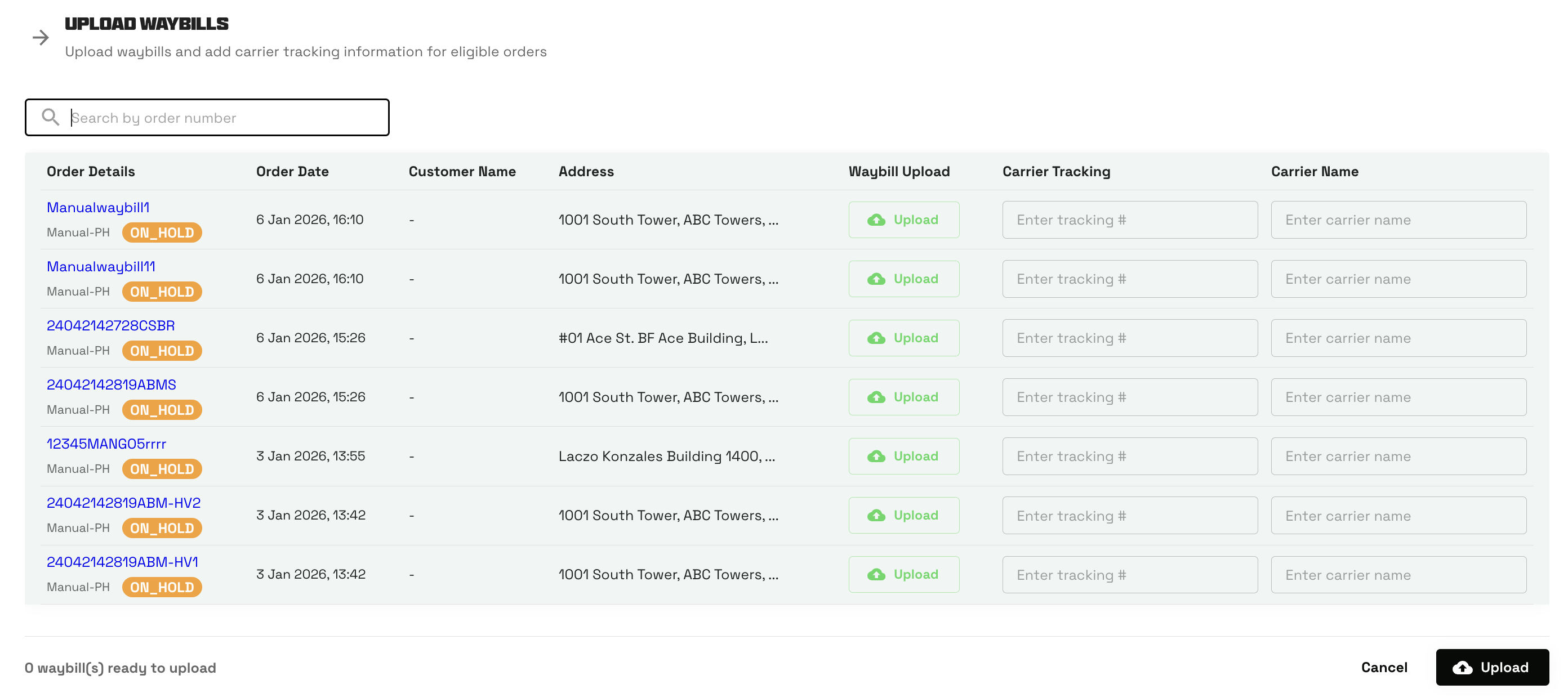
Upload the Waybill File: Under the Waybill Upload column, click the green Upload button (cloud icon) for the specific order row.
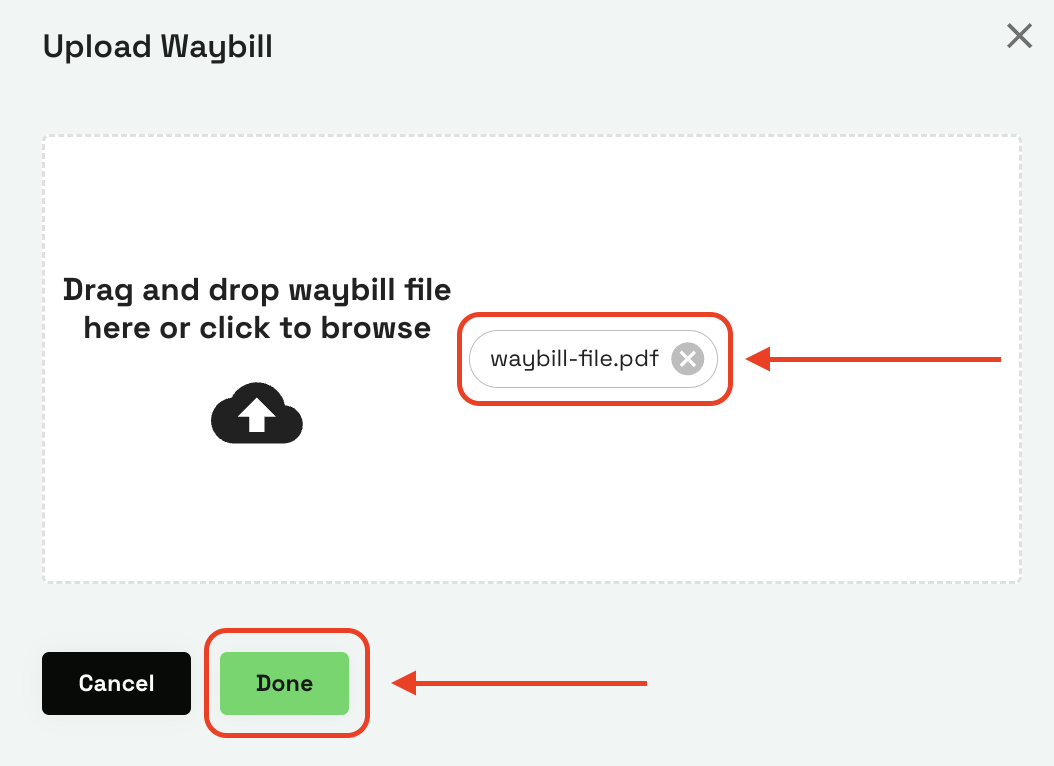
A pop-up window labeled "Upload Waybill" will appear.
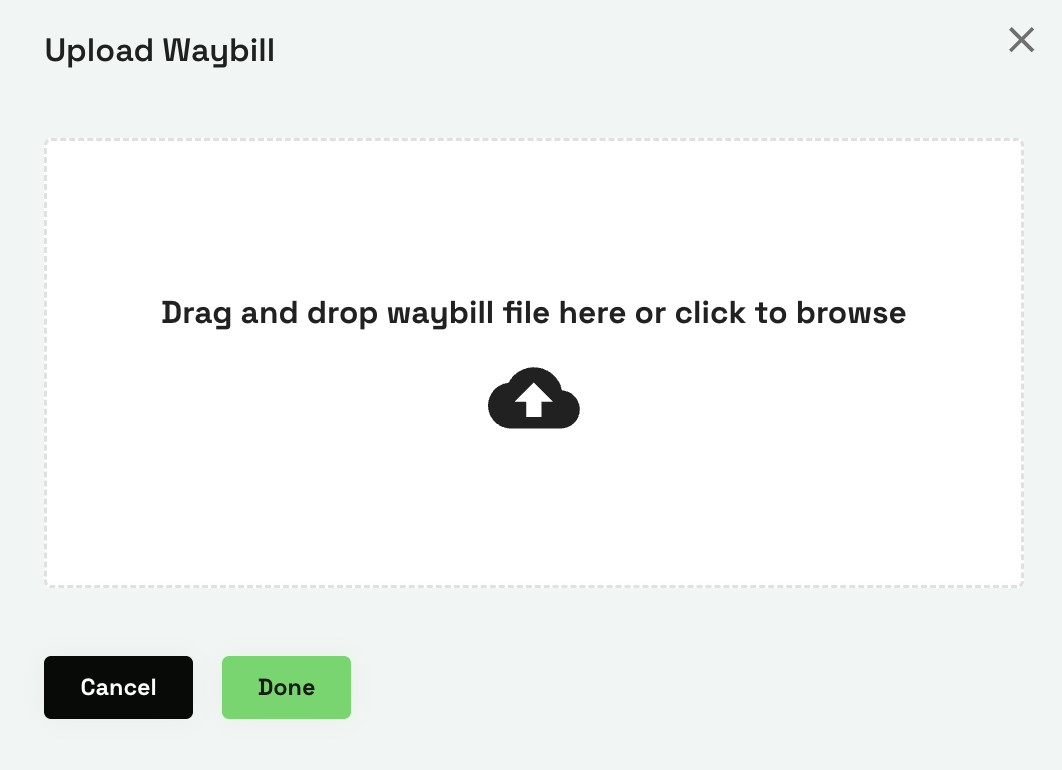
Drag and drop your waybill file (e.g., PDF) into the box or click to browse your computer.
Once the file is attached, click Done.
Enter Carrier Details: Back on the main list, fill in the following fields for that order row:
Carrier Tracking: Enter the tracking number.
Carrier Name: Enter the name of the logistics provider.
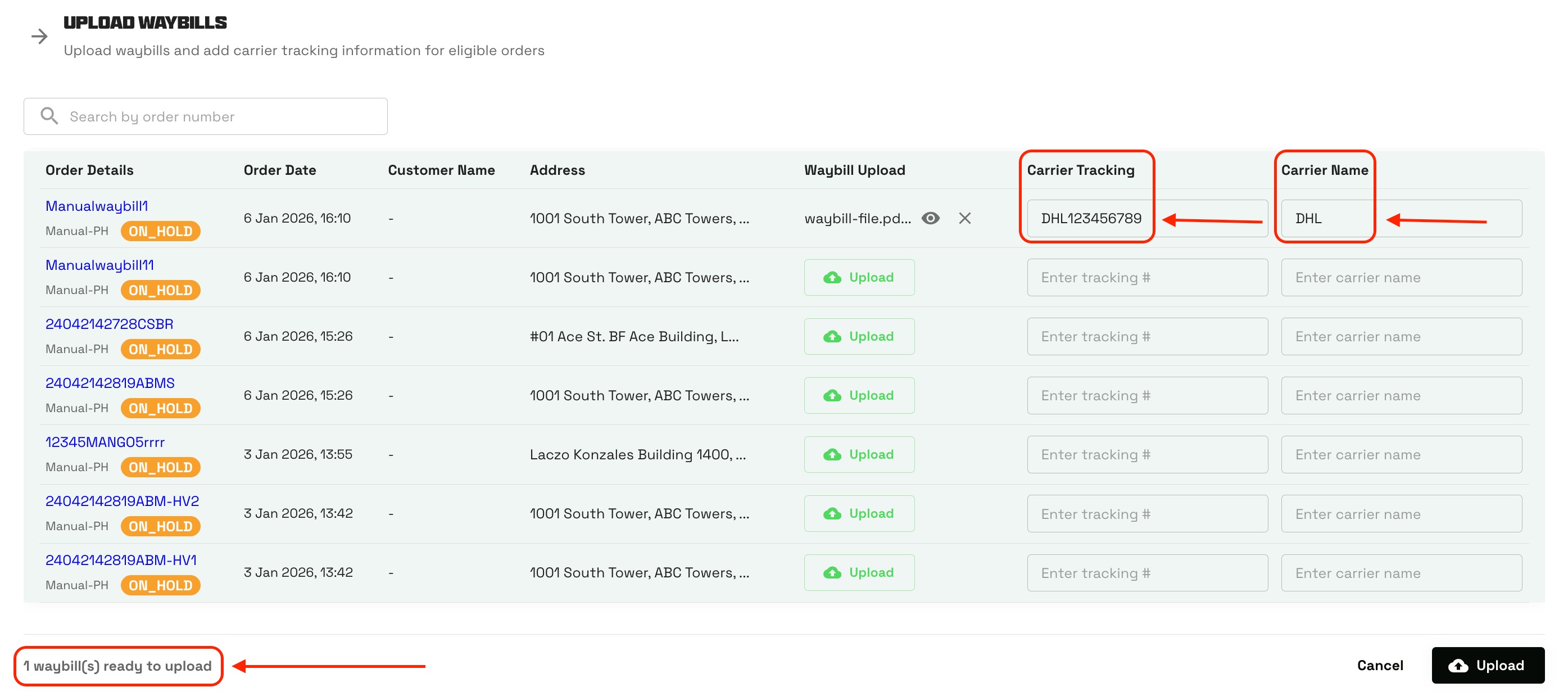
Confirm and Upload: Click the Upload button on the bottom right of the page.
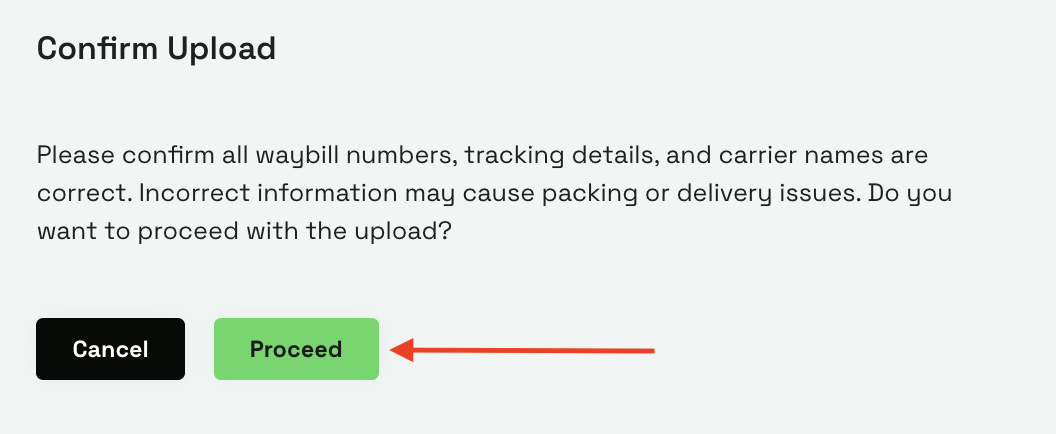
A confirmation pop-up will appear warning that incorrect details may cause delivery issues.
Click Proceed to confirm.
Verify Status Once uploaded, the details will sync automatically. You can click on the Order Number to view the Order Details page. The order status should change (e.g., from
ON_HOLDtoRELEASED), and the Carrier Name and Tracking Number will now be visible in the shipping section.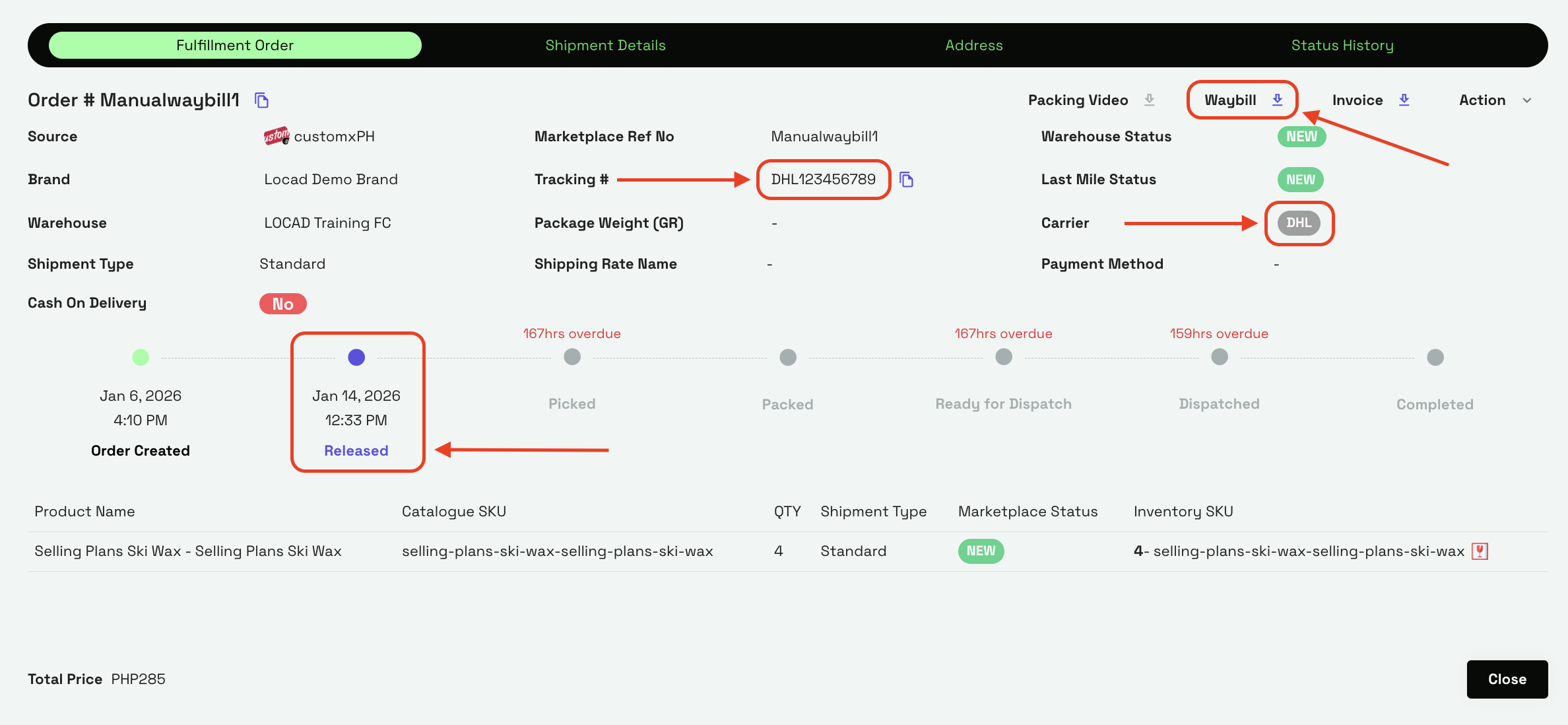
FAQs:
- What happens if I set "Shipment Required" to FALSE in my manual order upload?
Ans: If you setShipment Required = FALSE, the order will be placed ON HOLD immediately after upload. It will remain on hold until you manually upload the waybill, carrier name, and tracking number using the "Upload Waybills" feature. - Which orders appear in the "Upload Waybills" screen?
Ans: The screen displays:Manual orders marked with
Shipment Required = Falsethat do not have a waybill yet.Custom (ERP/API) orders where "Shipment Required" flag is false that were pushed without a waybill and are stuck in
PICKEDstatus.Marketplace orders (Shopee, Lazada, TikTok) stuck in
PICKEDstatus because the waybill is missing.
Who has permission to upload waybills?
Ans: For brands, only Brand Admins have the permission to access this feature and upload waybills.Is the "Shipment Required" column mandatory in the excel template?
Ans: No, the column is optional. If you leave it blank, it defaults toTRUE(meaning Locad will book the last mile). only change this toFALSEif brand intends to handle the last-mile booking themselves.