
The Locad Control Tower allows you to create B2B (Business-to-Business) and Pullout Orders directly, without needing to contact our support team. This feature is designed for fulfilling large orders to retail partners, distributors, or other offline channels.
TABLE OF CONTENTS
How to Create a B2B Order
The process is broken down into four simple steps, guiding you from selecting products to final confirmation.
Step 1: Select Inventory SKUs
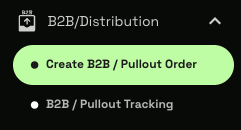
- From the left navigation menu, go to B2B/Distribution > Create a B2B / Pullout Order.
- Select Fulfillment Center: Choose the warehouse where the inventory for this order will be picked from.
- Add Products:
Search: Use the search bar to find products by their SKU or name.
Bulk Upload: For large orders, click Upload in Bulk to add multiple SKUs at once using a template.
- Set Quantity: For each SKU added, enter the desired quantity.
- Choose Fulfillment Method (for Expiry/Batch Managed SKUs):If a product has expiry or batch tracking enabled, you must select how the stock should be allocated:
Oldest Stock First (FEFO): The method prioritizes "First-Expired, First-Out," allocating stock with the nearest expiry date, and if dates are the same, it picks the oldest/smallest batch number.
Newest Stock First: This method prioritizes your newest inventory, which is ideal for clients who need the longest possible shelf life. The system allocates stock with the latest expiry date, and if dates are the same, it picks the newest/largest batch number.
- Specific Stock: This gives you full manual control. When selected, fields for Expiry Date and Batch # will appear, allowing you to choose the exact stock you want to ship.
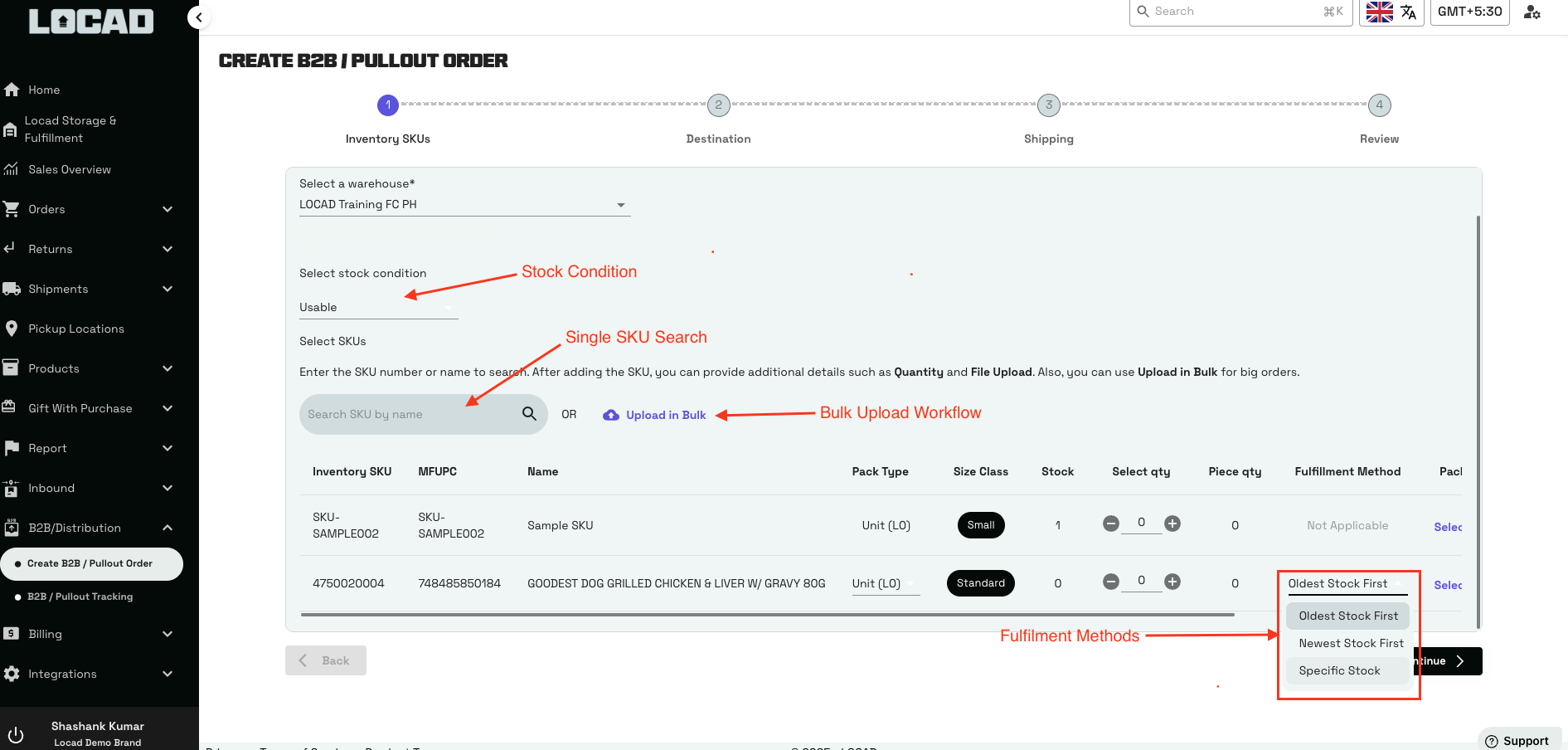
For products where you track expiry dates or batch numbers, you have precise control over stock allocation.
Important: The Fulfillment Method options are only available for SKUs with Expiry/Batch Management enabled. For other products, this column will show "Not Applicable".
6. Add Packing Instructions: You can provide specific instructions or upload documents (like custom packing or shipping labels) for each SKU, so that the FC can pack the order in the way it needs to be outbounded for the B2B/Distribution channel.
Packing Label documents and instructions are optional, however, for destinations such as Amazon where this is a requirement, please ensure to upload.Products with Pack Hierarchy
Select the Pack Type if pack hierarchy is enabled for the added iSKU. For more information on Pack Hierarchy, click here.
If your product is set up with a pack hierarchy (e.g., units, inner packs, cartons and pallets), you can specify the exact pack type you wish to order.
Add the Base SKU: First, add the product to your order list.
Select the Pack Type: Locate the Pack Type column for that SKU. Click on the dropdown menu to see all available pack levels, such as
Unit (L0),Pack_12 (L1), orPack_48 (L2).Enter Quantity of Packs: In the Select qty field, enter the number of packs you are ordering, not the total number of individual units.
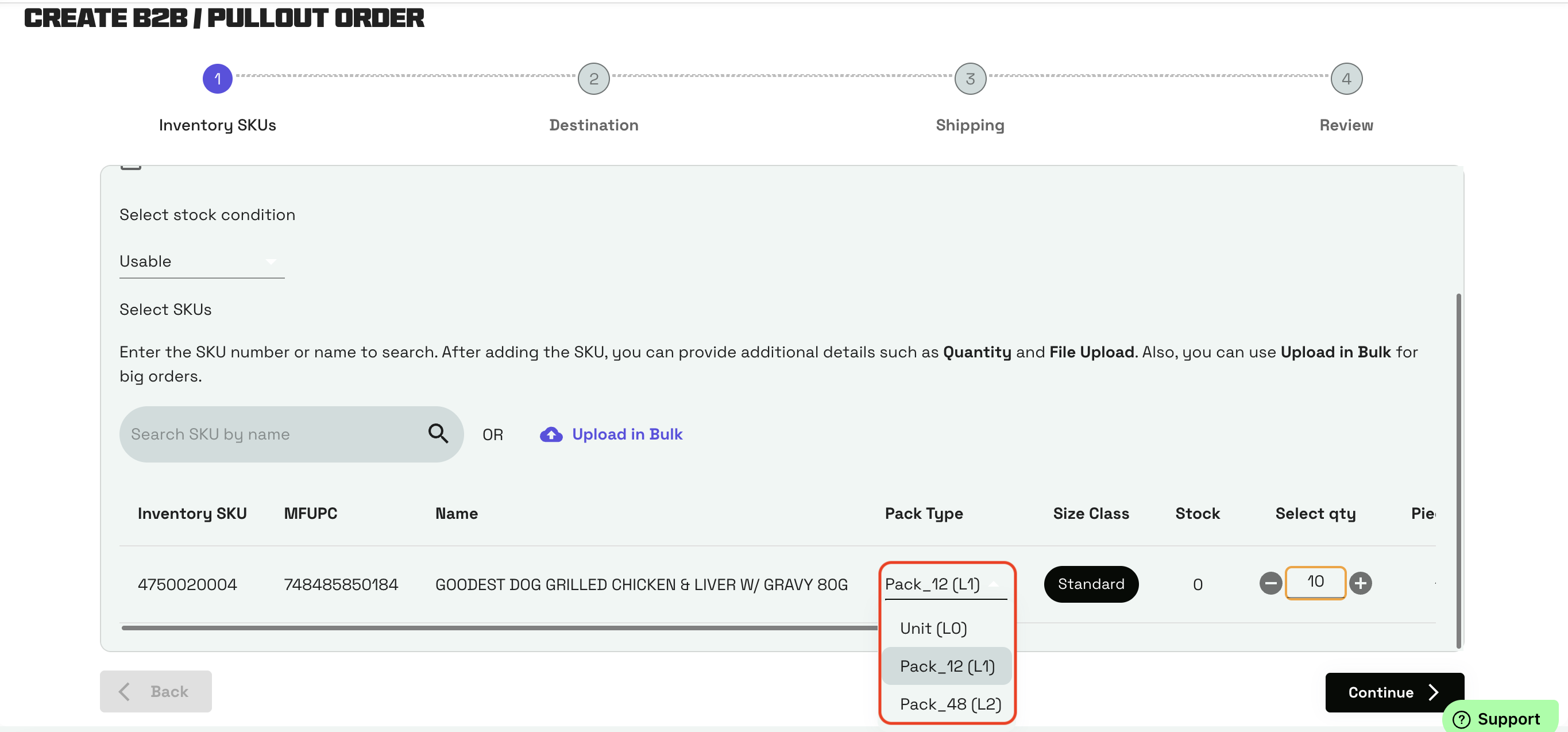
Ordering Multiple Pack Types for the Same SKU: If you need to order different pack types of the same product (e.g., 10 cases of 12 and 5 individual units), you must add the SKU to the order multiple times using Upload in Bulk.
Line 1: Add the SKU, select
Pack_12 (L1)as the Pack Type, and set the quantity to10.Line 2: Add the same SKU again, select
Unit (L0)as the Pack Type, and set the quantity to5.
Step 2: Add Destination Details
Provide the recipient's information for the shipment.
Destination Address:
Choose a saved address from your address book.
Click the plus (+) icon to add a new address. When adding a new address, you must specify a Destination Channel and an Address Title.
 2. Receiver Details:
- Enter the recipient's full name and contact phone number.
- When adding a new Destination address, you need to choose a Destination Channel and Address Title.

Click Continue once all details are entered.
Step 3: Choose a Shipping Method
Select how the order will be delivered.
Delivery by Locad: We will arrange the delivery. You will need to select a preferred Delivery Date and Delivery Time Slot. Our team will book a manual carrier (e.g., Ninjavan, Lalamove) based on this schedule.
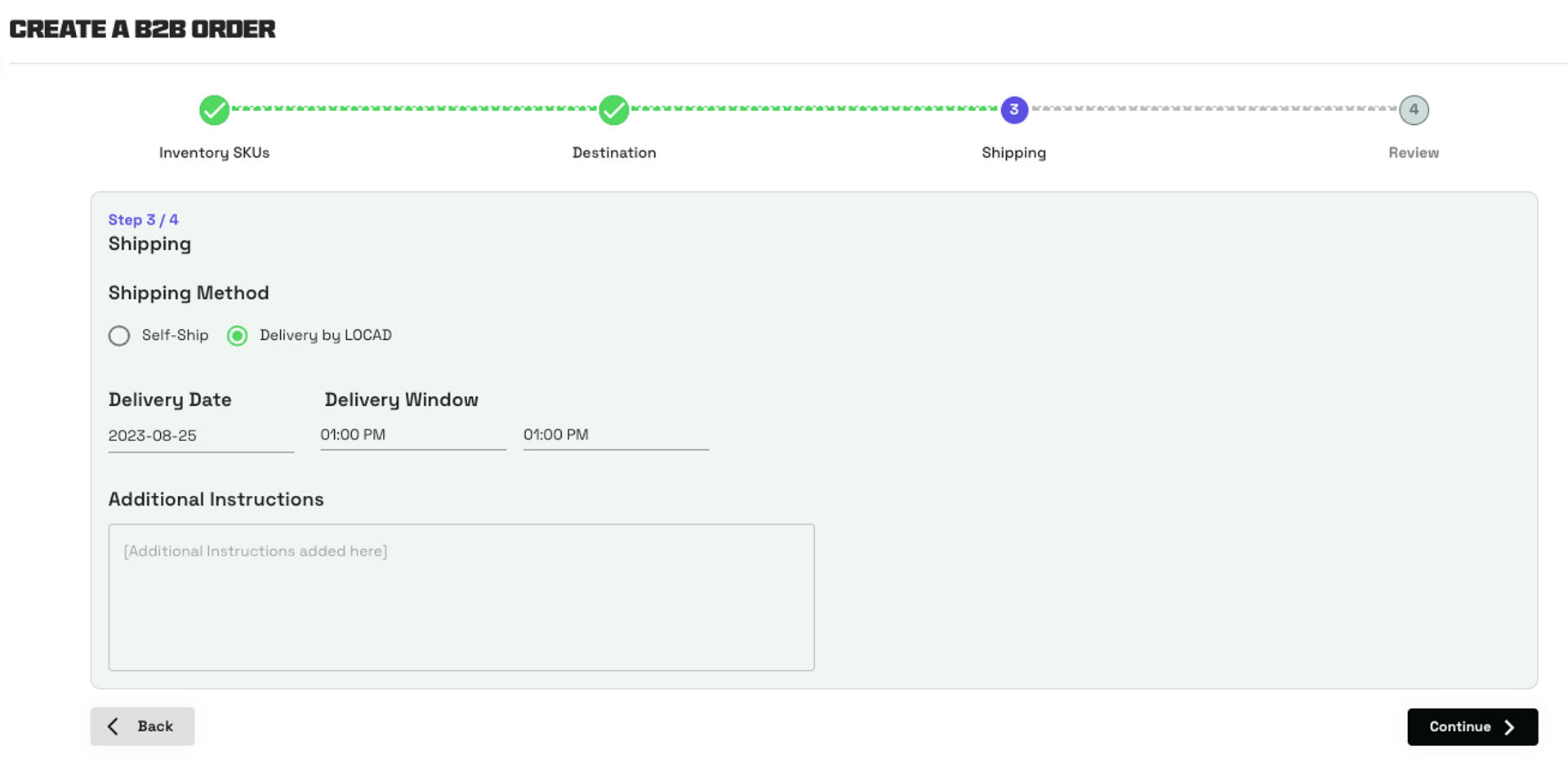
2. Self-Ship: You will arrange for your own courier to pick up the order. You must provide:
Carrier Point of Contact (POC) Name
Carrier Contact Number
A scheduled Pick-up Time Slot
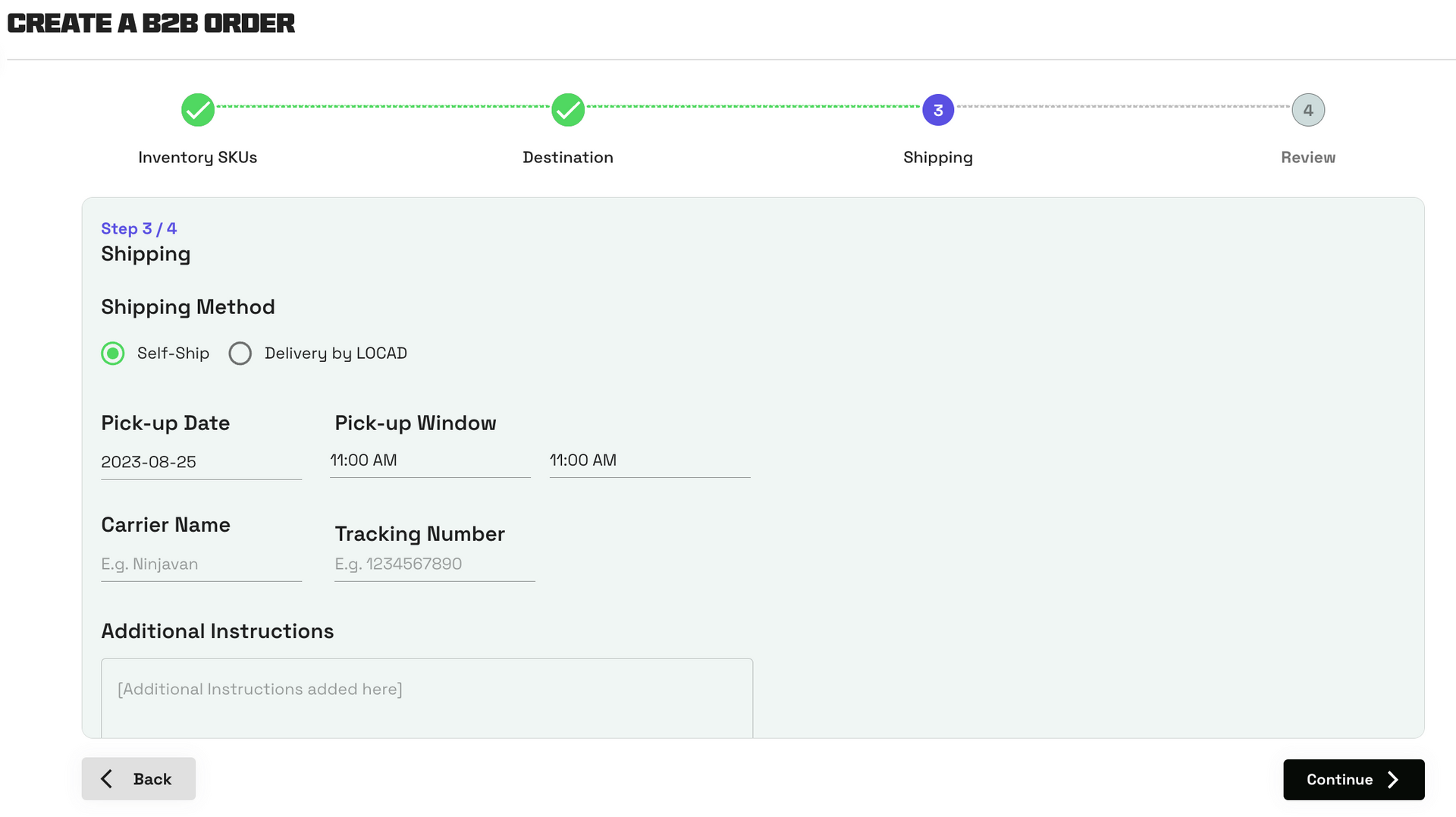
Click Continue to move to the final step.
Step 4: Review and Confirm
This is your final chance to verify all order details.
Carefully review the selected SKUs, quantities, destination address, and shipping method.
If any section needs changes, click the Edit button next to it. This will take you back to the relevant step to make modifications.
Once you are satisfied that all details are correct, click Confirm Order.
After Your Order is Created
After confirmation, you will be redirected to the B2B/Pullout Tracking page, where you can monitor the status of all your orders.

Here, you can view all your B2B Orders. Orders are in “Draft” status - when they are created, but not confirmed or submitted. Confirmed orders show as “ASN Pending” status.
The Fulfillment of B2B Orders are dependant on the capacity of our fulfillment partners. During peak periods such as double digit campaigns, there may be delays in completing these orders so please schedule ahead as much as possible.If you need any further support, please get in touch with the team here.